


Phone Numbers
Buy, claim, port, and remove phone numbers and set their caller ID from the portal.
The Phone Numbers tab lets you manage your account's phone numbers yourself: search for and purchase new numbers, claim available inventory instantly, set the caller ID name you present on outgoing calls, control incoming caller name lookup, and remove numbers you no longer need.
The four tabs
More than one location? The tab first asks Which location are you managing numbers for? Each location is listed by its location code, or as Location 1, Location 2 and so on. Your Numbers and the plan usage banner then show that location, and numbers you order or claim from Available Now are added to it. An account with one location never sees the question. To switch locations, reload the page and choose again.
Three view tabs sit on the left, and the + Add Numbers action tab sits on its own at the right. A banner in the header shows your plan usage ("Using X of Y phone numbers").
| Tab | What it does |
|---|---|
| Your Numbers | Your current phone numbers with type and feature badges and per-number Caller ID and Remove buttons. |
| Available Now | Numbers from your organization's inventory that can be added to your account instantly; no carrier order needed. |
| Recent Orders | A history of your number orders with status and details. |
| + Add Numbers | Search the carrier network for new numbers and purchase them. |
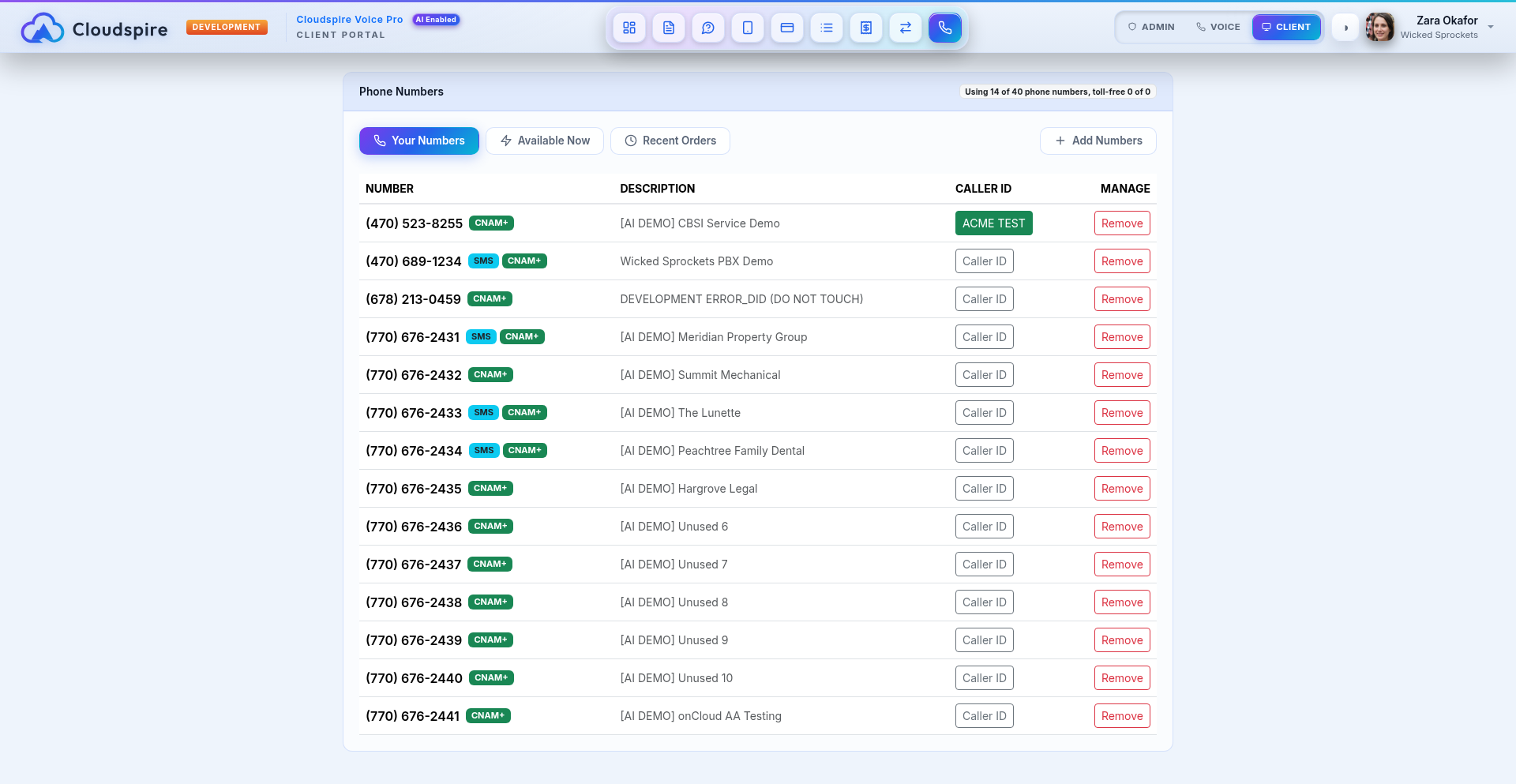
The Your Numbers tab with feature badges and per-number Caller ID and Remove buttons
How many numbers can I add?
A limits banner shows "Using X of Y phone numbers." This is how many numbers your plan allows and how many are in use. If toll-free numbers are included in your plan, a second count is shown for those. Toll-free numbers also need a Toll-Free Minute Package, the add-on that carries their inbound minutes: without one, calls to them are declined, callers hear that the number does not have an active service plan, and a Toll-free calling is not fully enabled warning shows at the top of the portal until you add the package on the Plan tab. When you reach your limit, raise it on the Services tab before adding more. If your plan includes no numbers of the type you searched for, or you have used your allowance, a notice above the search results says so and points to the Services tab.
Searching for and purchasing a number
Open Add Numbers and pick one of the seven search modes:
- Area code: a 3-digit area code (e.g. 470) for local numbers in that area.
- Prefix (NPA-NXX): an area code + exchange to narrow to a specific exchange.
- City / State: pick a state, then optionally a city; the city list comes from the numbers actually available in that state. Leave the city on All cities to browse the whole state.
- ZIP: search by ZIP code.
- Consecutive block: find a run of sequential numbers, useful for teams that want numbers that end in order. Enter an area code (and optionally an exchange) and choose how many in a row: 2, 3, 4, 5, or 10.
- Toll-free: choose any toll-free prefix or a specific one (800, 833, 844, 855, 866, 877, 888), optionally with a vanity pattern such as FLOWERS. Toll-free numbers count toward your toll-free limit only. If you type a toll-free area code such as 844 into the Area code or Prefix search, the portal asks you to use this Toll-free mode instead.
- Local vanity: search for local numbers that spell out a word or pattern of up to 7 letters. The state is optional: leave it on Any to search everywhere, or pick a state and then optionally narrow by area code. Tick Ends in these letters to show only numbers that end with your word, rather than numbers that contain it anywhere. Matching letters are highlighted in the results.
Select the numbers you want and click Buy selected (for a consecutive block, click Buy this block on the run you want). In most cases your new numbers are live within a few seconds. If the carrier needs more time, the order shows as Processing under Recent Orders and the numbers provision automatically once the carrier confirms.
If you plan to send text messages
The 10DLC registration affects sending only; it does not block calling or receiving. Sending from a regular 10-digit number needs an approved registration, usually 1 to 3 weeks. If yours is not approved yet, we show a notice before the order goes through and ask you to confirm you understand. (Receiving also needs an SMS package on your plan and a delivery destination set on the number; ask us if you are not sure.) Toll-free numbers sit outside 10DLC entirely, but sending from a toll-free number is not supported; use a regular 10-digit number for that. If your registration is already approved you will not see anything extra. The same confirmation appears when you claim a number from Available Now. Start or check your registration on the SMS Campaigns tab.
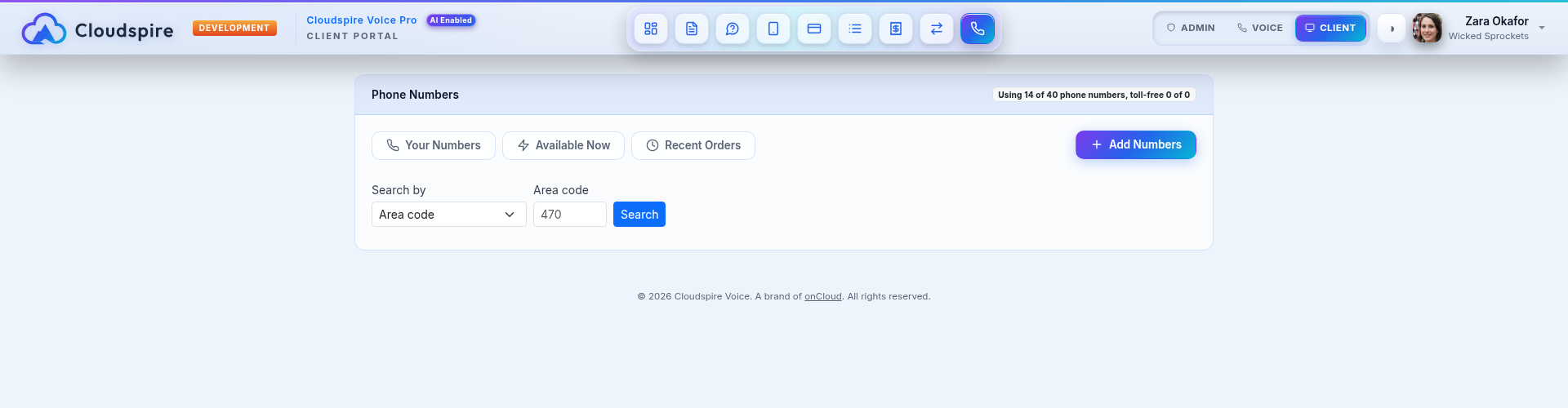
Searching for new numbers on the Add Numbers tab
Available Now: numbers you can claim instantly
The Available Now tab shows numbers in your organization's shared inventory that are ready for immediate assignment: numbers returned to the pool. They are not automatically yours: click Add to my account on a row to claim one. You can filter by area code or by type (local or toll-free). Pool numbers count toward the same plan limits as newly ordered numbers, and claiming one requires a paid plan; on a trial the number cannot be assigned.
Caller ID controls
Every active number has a Caller ID button that opens a dialog combining two separate features. Once you have set an outbound caller ID name, the button itself displays that name, so you can see each number's presentation at a glance.
Your caller ID name (outbound)
The name shown on the phone of the person you call. Available on any active number; it is not tied to a plan tier.
- Up to 15 characters: letters, digits, spaces, and
. , & - _ '. It cannot start with a space or consist only of digits. - Changes take effect once the carrier processes the request, typically a few hours, up to a day. The dialog shows a pending notice while processing and a confirmed notice when done.
- Use Clear to remove the name and return to the default presentation.
- Display is ultimately up to the receiving carrier; most pass the name through, but some devices or carriers may show it differently or not at all.
Incoming caller name lookup
Controls whether the system looks up the name of a person calling you:
- Off: no lookup; the caller's number is shown without a name. Always available.
- Standard: looks the caller's name up in the carrier name database. Available on plans that include Standard caller name lookup.
- Enhanced: uses an enhanced caller database for higher match rates. Available on plans that include Enhanced caller ID.
Standard and Enhanced are mutually exclusive; only one can be active on a number at a time. Options your plan does not include simply do not appear in the dialog; add the capability from the Plan tab if you need it.
Removing a number
Click Remove on a number's row and confirm. The number is released back to your organization's available pool and is no longer billed to your account. Removal is blocked while the number is still referenced, and the message lists the exact references to clear first. A number is referenced when it is:
- An extension's outbound caller ID, or a selectable caller ID in the caller ID pool.
- Your location's default outbound caller ID.
- A queue's callback caller ID.
- The emergency (911) caller ID for your location or for an extension. Assign a different number as the emergency caller ID first; this is the number 911 dispatch sees.
- The outgoing number of an active or paused AI campaign.
- Part of a port or disconnect that is still in progress with the carrier.
If a number shows a Removing badge, your administrator has asked the carrier to permanently release it; it stays active for inbound calls until the carrier completes the request.
Recent orders
The Recent Orders tab lists your number orders with their status and the numbers involved:
| Status | What it means |
|---|---|
| Processing | The order is placed and working its way through the carrier. |
| Complete | Every number on the order is live on your account. |
| Partially Complete | Some of the numbers on the order came through and some did not. The per-number list shows which. |
| Confirming With Carrier | We are checking the final result with the carrier. It resolves on its own. |
| Failed | No numbers were added. |
Failed orders show a reason, for example, a number taken by someone else in the moment between search and purchase, and you can simply search again for a replacement.
Porting a number in
To bring an existing number from another carrier instead of ordering a new one, use the Porting tab. Porting transfers your current number to Cloudspire Voice so you keep the number people already know. The questions we hear most about transfers in both directions, including what to have ready, timing, cost, and moving numbers away from Cloudspire, are answered on the Porting FAQ.
The billing telephone number the form asks for is the main number your current carrier lists for the account you are moving. It must be a number with that carrier, usually one of the numbers you are porting. A number that is already on Cloudspire cannot be the billing number of another carrier’s account, and every number on one request has to be with the same carrier. The form tells you which number does not fit before anything is submitted, so you can correct it and submit again. If the carrier turns the request away after it is submitted, it stays listed as a draft, our team is notified automatically, and we follow up with you.
When you start a port you can optionally request an activation date and time (Eastern). Toll-free numbers activate between 8:00 AM and 6:00 PM ET, so a requested time outside that window is not accepted for a toll-free port.
Once the carrier confirms an activation date, open the port on the Porting tab to change that date or stop the transfer yourself. A new date can be up to 30 days out. Carriers allow three date changes on a confirmed transfer, and a further one risks them cancelling the transfer outright. Changes get riskier the closer you are to activation: inside two days the carrier may still move your numbers on the original date, and inside the last day the change has to go through our team, so contact support and we will handle it. Stopping a transfer sends a cancellation request to the carrier: it is not stopped until they confirm, and close to the activation date they can refuse, in which case your numbers still move. Watch the transfer status until it says cancelled.
Off-network numbers (E911 and caller ID only)
A number you keep with another carrier can still be registered on Cloudspire for 911 service or used as your outbound caller ID. Because such an off-network number is not carried on the Cloudspire platform (its calls and texts terminate with the other carrier) it cannot receive text messages here. Editing one of these numbers saves normally, and the editor shows a warning that text-message routing was not saved and does not apply to the number.
Related
- Services: raise your phone number or toll-free number limits.
- Plan: add Standard or Enhanced caller name lookup to your plan.
- SMS Campaigns (10DLC): required registration before texting from your numbers.