


SMS Campaigns
Register your brand and campaign so your business can send text messages.
Before your business can send SMS text messages through Cloudspire Voice, you need to register your brand and submit a campaign with The Campaign Registry (TCR). This is a one-time process required by US carriers for 10DLC (10-Digit Long Code) messaging. Registration ensures your outbound messages are delivered reliably and helps carriers distinguish legitimate business traffic from spam.
This guide walks you through every field, explains what reviewers look for, and gives you concrete examples so you can get approved on your first submission.
Before You Begin
Gather these items before starting your registration. Having them ready will save time and prevent the most common rejections.
- IRS EIN confirmation letter: Your 9-digit Federal EIN and the exact legal name on file with the IRS. This is the #1 rejection reason when it doesn’t match.
- Working business website: Must show your company name, contact info, and description of services. Websites under construction or with placeholder content cause rejections.
- Business address: The address on file with the IRS for your EIN.
- Business phone and email: Use a company phone number and email at your business domain when possible.
- Privacy policy URL: A page on your website that mentions SMS/text messaging. Required for standard brands.
- 2-3 sample text messages: Real examples of what you’ll send, including your brand name and opt-out language.
- Description of how customers opt in: Specific and verifiable (website form, in-person signup, etc.).
Getting Started
- Log in to the customer portal.
- Navigate to the SMS Campaigns tab.
- You will see two sections: Brand Registration and Campaign Registration.
The SMS Campaigns tab appears when your plan includes text message campaigns (a Voice plan, or a Cloudspire AI plan with the campaign option) and your contact has been given SMS Campaigns access. Your account's primary contact has SMS Campaigns access automatically. To give it to another contact, ask Cloudspire support; it is not something you can grant from the portal. If the plan does not include campaigns yet, your primary contact can add them on the Services tab.
You must complete brand registration first. Once the Cloudspire team approves your brand, the Submit a Campaign button in the Campaign Registration section unlocks; until then it stays disabled.
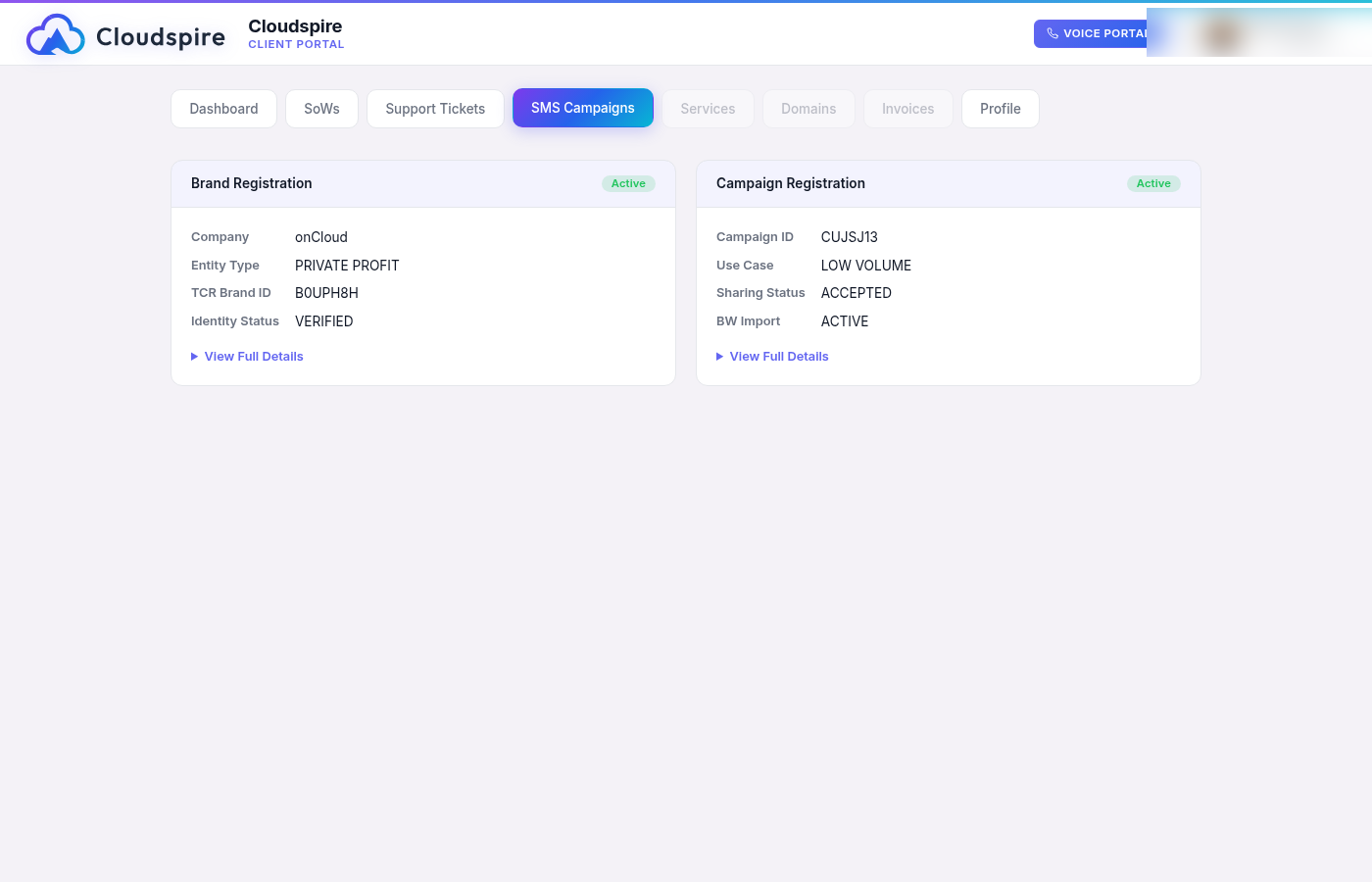
The SMS Campaigns tab showing an active brand and campaign
Need more than 49 texting numbers? Contact us before you reach the limit. A campaign can hold more than 49 numbers only with a Number Pool approved by the carrier. A Number Pool can be requested only for a campaign that is already approved, and the extra numbers can be added only after the Number Pool itself is approved. Checking the Number Pool box on the campaign form does not approve one on its own.
How It Works
The registration process has two phases: brand first, then campaign. Each phase goes through review and verification before becoming active.
Phase 1: Brand Registration
Phase 2: Campaign Submission
Step 1: Register Your Brand
Your brand represents your legal business entity. The information you provide is verified against public sources such as the IRS EIN database and state business registries. Accuracy is everything; most rejections happen because a field doesn’t match official records.
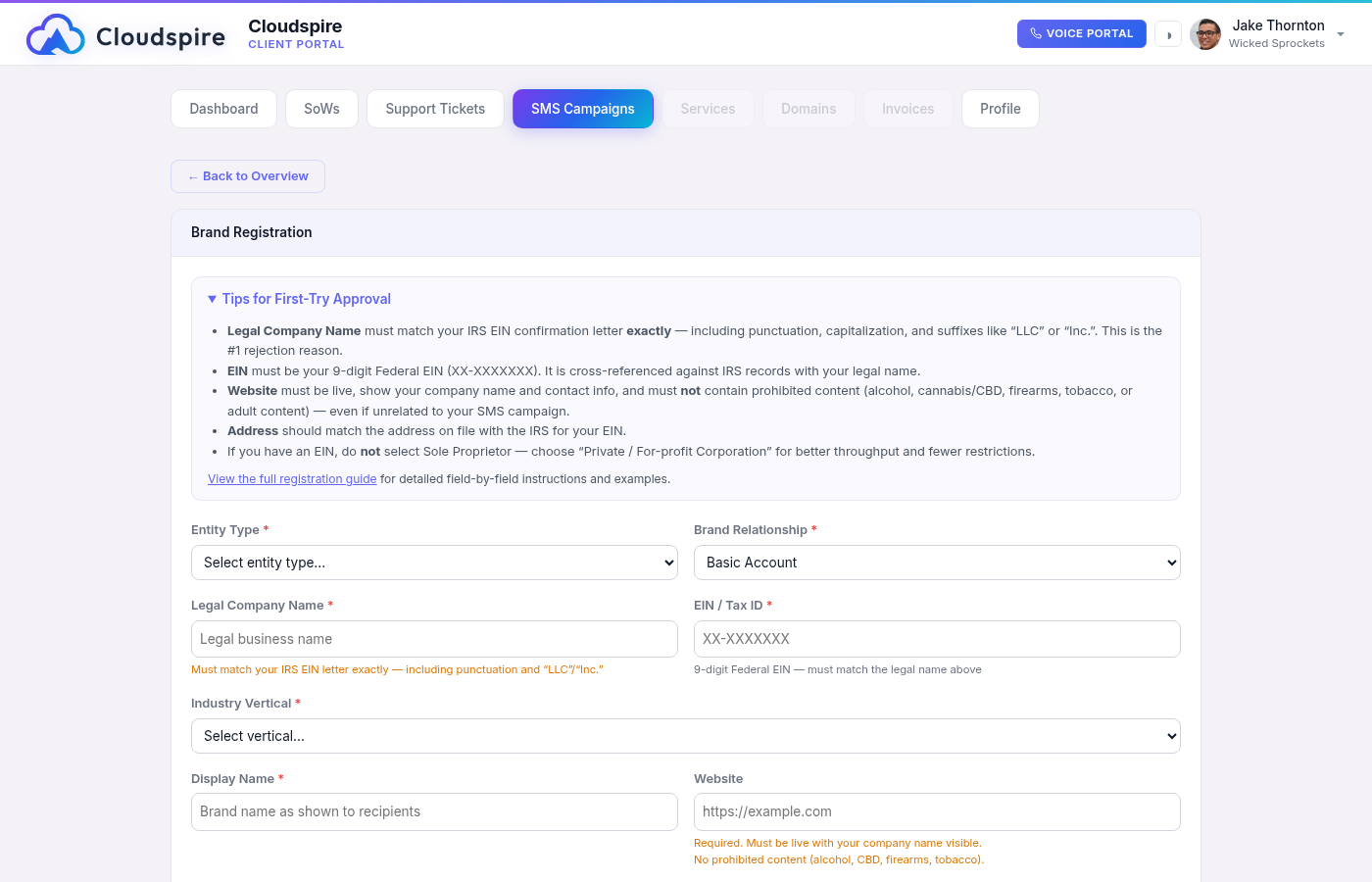
The brand registration form with fields for business details
Field-by-Field Guide
Entity Type
Choose the type that matches your business structure:
- Private / For-profit Corporation: Most Cloudspire customers. Use this for any LLC, Corp, Inc., or S-Corp with an EIN.
- Publicly Traded Company: Only if listed on a stock exchange (NYSE, NASDAQ, etc.).
- Non-profit Organization: 501(c)(3) or equivalent.
- Government: Government agencies and departments.
- Sole Proprietor: Only if you have no EIN. Limited to 1 campaign, 1 phone number, and the lowest throughput tier.
Legal Company Name CRITICAL
This is the #1 rejection reason. Your legal name must match your IRS EIN filing character-for-character: including punctuation, capitalization, “LLC”, “Inc.”, commas, and ampersands.
Find your exact legal name on your IRS EIN confirmation letter (CP 575 or 147C) or your state’s Secretary of State business registration.
“Smith & Associates” (missing “, LLC”)
“SMITH & ASSOCIATES, LLC” (wrong capitalization)
EIN / Tax ID CRITICAL
Your 9-digit Federal Employer Identification Number in XX-XXXXXXX format. TCR cross-references this against IRS records; the EIN and legal company name must match.
- State tax IDs and SSNs are not accepted for standard brand registrations.
- If you don’t have your EIN handy, check your original IRS confirmation letter or call the IRS Business & Specialty Tax Line.
DUNS Number
Optional. If your business has a 9-digit Dun & Bradstreet D-U-N-S number, entering it can speed up brand verification.
Sole Proprietor Details
When the Entity Type is Sole Proprietor, the form hides Legal Company Name, EIN, DUNS Number and Industry Vertical and asks instead for your First Name, Last Name and Mobile Phone (a 10-digit number). All three are required.
Stock Exchange and Stock Symbol
Shown only when the Entity Type is Publicly Traded Company. Pick the exchange your shares trade on (NYSE, NASDAQ, AMEX or Other) and enter your ticker symbol.
Display Name
Your DBA (doing-business-as) or marketing name; this is what customers see. It does not need to match your EIN. Keep it professional and recognizable.
Website CRITICAL
Your business website is required for standard brands. Submissions without a working website are routinely rejected. The website must:
- Be active and load properly (no 404s, “under construction”, or parked domains)
- Show your company name, contact information, and a description of your services
- Match the brand being registered (same company name)
Business Address
Use the exact address on file with the IRS for your EIN. This is cross-referenced during verification. PO Boxes are acceptable for sole proprietors.
Contact Phone & Email
- Use a business phone number (not a personal cell for corporations).
- Use an email at your business domain when possible (e.g., [email protected]).
- Sole proprietors: Your mobile number is required for OTP verification and must match your carrier records.
Industry Vertical
Select the closest match to your actual business. Don’t try to game this; misrepresentation causes rejection.
Brand Relationship
Required. The choices are Basic Account (the default), Small Account, Medium Account, Large Account and Key Account. Most Cloudspire customers should choose Basic Account.
Submitting Your Brand
- Fill out the brand registration form in the SMS Campaigns tab.
- Click Save Draft at any time to save your progress without submitting.
- When ready, click Submit for Review.
- Wait for the Cloudspire team to review your submission (typically within one business day).
- Once approved, your brand is forwarded to The Campaign Registry for identity verification, which usually takes a few minutes.
Step 2: Submit Your Campaign
A campaign describes the specific type of SMS messages you will send, how your customers agreed to receive them, and what those messages look like. The Campaign section becomes available once your brand status is Active.
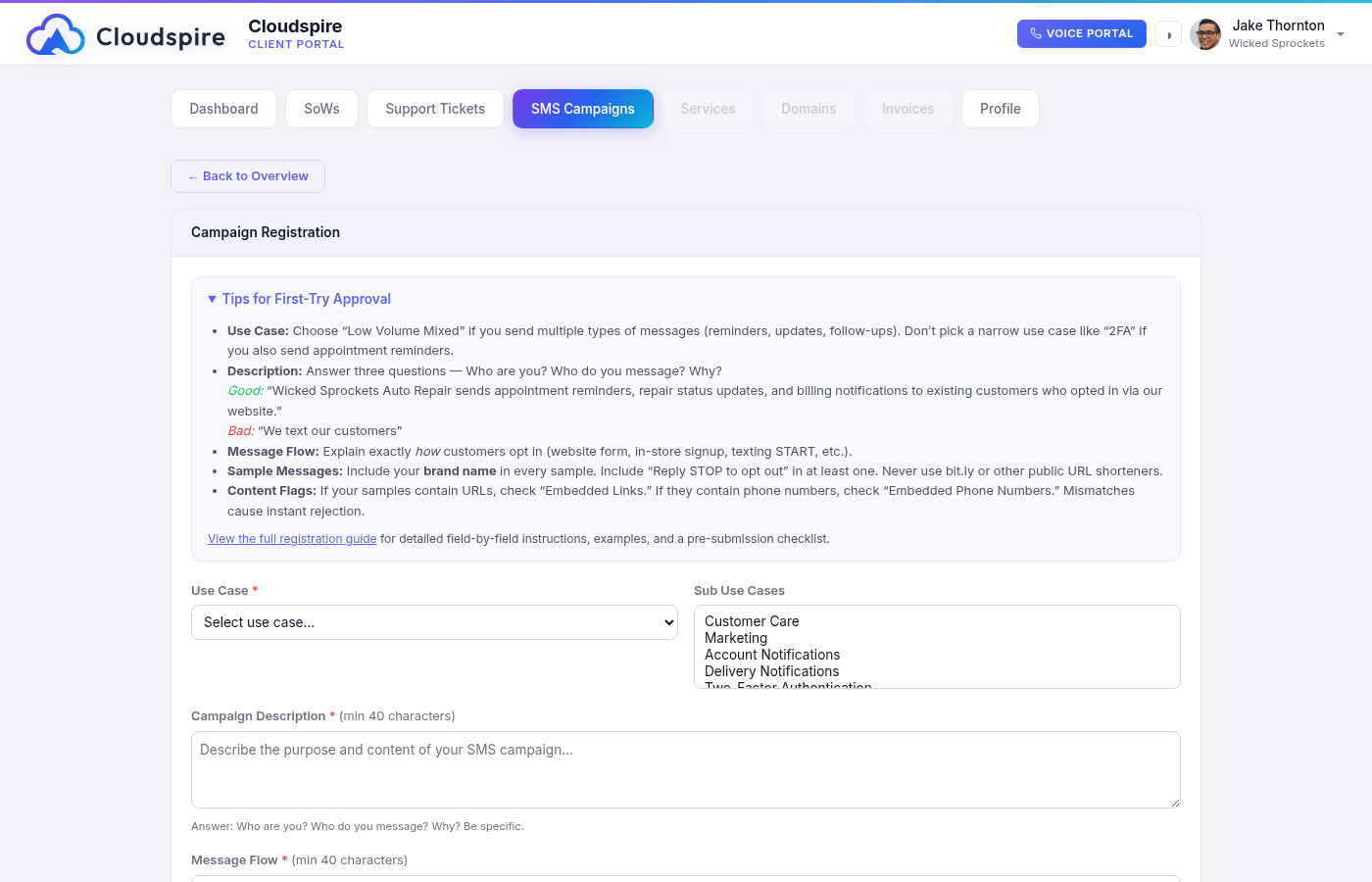
The campaign submission form with use case, sample messages, and compliance options
Start from a Template
At the top of the campaign form, the “Start from a template” picker offers pre-built profiles: Generic Campaign (the recommended default for most businesses), plus profiles for home & field services, auto service & repair, healthcare & dental, and retail & promotions. Applying one pre-fills the form with wording modeled on campaigns that carriers have already approved: a compliant description, a specific opt-in message flow, sample messages with the required opt-out language, and sensible keywords and auto-replies.
- Nothing is submitted. A template only fills in the fields on your screen; every value stays fully editable, and you still Save and Submit exactly as described below.
- Your details are filled in where possible. Your company name, phone, email and website come from your brand registration automatically.
- Replace every
[BRACKETED PLACEHOLDER]. Anything in square brackets (dates, service names, offers, or details we could not fill in) must be replaced with your real information before submitting. - Make it true for your business. Reviewers reject campaigns whose description does not match the actual sender. Read every pre-filled field and adjust it so it accurately describes what you send. Add your own Privacy Policy and Terms of Service URLs; templates never fill those in.
- Mind the content flags. Template samples deliberately contain no links and no phone numbers, so the content flags start unchecked. If you add a URL or a phone number to any sample, check the matching flag (see Content Flags below); a mismatch is an instant rejection.
Field-by-Field Guide
- Use Case, plus Sub Use Cases for “Mixed” (at least two) and “Low Volume Mixed” (at least one)
- Campaign Description and Message Flow, at least 40 characters each
- Sample Message 1, plus a second sample for “Mixed.” Every sample you provide must be 20 to 1,024 characters
- Opt-out Message and Help Message, at least 20 characters each
- The Opt-in Message is optional, but if you write one it must also be at least 20 characters
Use Case
Select the category that best describes your messaging. For most Cloudspire customers, “Low Volume Mixed” is the right choice; it covers multiple message types (appointment reminders, customer service, order updates) at standard volume.
Sub use cases: “Mixed” needs at least two and “Low Volume Mixed” at least one. Pick the kinds of messages you will actually send, such as Customer Care and Account Notifications.
Choose carefully: this one is permanent. Your use case and sub use cases are locked once your campaign is registered. The registry does not accept changes to them on a resubmission, so if a campaign comes back declined those two stay fixed (shown as read-only) while the rest of the form unlocks. If you do need a different classification after registration, contact support; it takes a new campaign registration, which our team sets up for you, and a new campaign uses another of the campaign slots on your plan (the declined one cannot be removed, because the registry has already issued it an ID).
Campaign Description CRITICAL
Minimum 40 characters. Your description must answer three questions:
- Who are you?: Include your business name and what you do.
- Who do you message?: Describe your recipients (customers, patients, clients, etc.).
- Why do you message them?: List the specific types of messages you send.
“Text messages are used for our team to communicate with customers” (no specifics)
“Marketing” (insufficient detail)
Message Flow CRITICAL
Minimum 40 characters. Describe how customers opt in to receive your messages. The opt-in method must be specific and verifiable.
Sample Messages CRITICAL
Sample Message 1 is required. Every sample you provide must be between 20 and 1,024 characters. For some use cases, such as “Mixed,” the carriers require at least two samples, and the form tells you when you need another. Providing 2-3 samples significantly improves your chances of approval. Follow these rules:
| Rule | Why It Matters |
|---|---|
| Include your brand name in every sample | Reviewers must be able to identify who is sending the message |
| Match your use case | If you selected “Mixed,” show variety (a reminder + an update + a follow-up) |
| Include opt-out language in at least one sample | “Reply STOP to opt out”, required by carriers |
| Be specific and realistic | Use actual content you would send, not generic filler |
| No public URL shorteners | bit.ly, tinyurl, etc. are banned; use full URLs or your own domain |
| Use personalization | Include {name} or similar placeholders to show these are real messages |
Sample 1: “Hi Jane, this is Wicked Sprockets Auto. Your vehicle service is scheduled for tomorrow at 10 AM. Reply C to confirm or call us at (470) 555-1234 to reschedule.”
Sample 2: “Wicked Sprockets update: Your 2019 Honda Civic oil change is complete and ready for pickup. Total: $49.95. Reply STOP to opt out.”
Sample 3: “Thank you for choosing Wicked Sprockets! How was your experience? Reply 1-5 to rate us. Msg&data rates may apply. Reply STOP to unsubscribe.”
“Your appointment is tomorrow” (no brand name, no opt-out)
“Click here: bit.ly/x7g3k” (public shortener, no context)
“Thanks for your business!” (too generic, no brand identification)
Keywords & Auto-Reply Messages
| Field | Default | Guidance |
|---|---|---|
| Opt-out Keywords | STOP | Keep STOP as the primary keyword. You can add END, CANCEL, UNSUBSCRIBE as extras. |
| Opt-out Message | - | Required, at least 20 characters. Must include your brand name, confirmation of unsubscribe, and that no further messages will be sent. Example: “You’ve been unsubscribed from Wicked Sprockets messages. No further texts will be sent. For help, call (470) 555-1234.” |
| Help Keywords | HELP | Keep HELP as the primary keyword. |
| Help Message | - | Required, at least 20 characters. Must include your brand name and an alternative contact method (phone, email, or support URL). Example: “Wicked Sprockets SMS Help: For support, email [email protected] or call (470) 555-1234. Reply STOP to opt out.” |
| Opt-in Keywords | - | Optional. “START” and “YES” are common choices. |
Privacy Policy & Terms of Service URLs
- Privacy Policy: Required for all standard brands. Must be a working URL on your website that mentions SMS/text messaging data collection.
- Terms of Service: Recommended but not always required. Include it if you have one.
Content Flags CRITICAL
These checkboxes describe what your messages contain, and they carry real weight with the carriers; review them carefully. While your campaign is awaiting review, approved, submitted, or active, the whole form is locked and the flags cannot be changed. If your campaign comes back rejected or declined, the form unlocks: correct the flags along with anything else in the feedback and resubmit.
Supporting documents unlock too. On a declined campaign you can Remove a file and upload a corrected one in its place. A file showing the submitted badge is taken off your campaign at the carrier registry first and only then from your portal; if the registry does not confirm it, the portal tells you and keeps the file listed. That is also how you make room if you are at the five-file limit. Two situations are worth a word to support before you resubmit: a file WITHOUT the submitted badge is removed from your portal only, and if its upload ended in an error the registry may be holding it anyway; and if the connection drops mid-removal, the registry may or may not have acted on it. In either case ask us to check what is actually attached first; every resubmission is billed, and one that still carries the rejected file is likely to be declined again.
| Flag | Check “Yes” If… |
|---|---|
| Contains Embedded Links | Any of your messages will ever contain a URL (including in samples) |
| Contains Embedded Phone Numbers | Your messages include a phone number other than your HELP contact number: the contact in your HELP auto-reply does not count |
| Number Pool | Only if this campaign will need more than 49 phone numbers, the carriers’ hard limit per campaign. Checking it does not raise the limit by itself: the Number Pool must also be requested and approved, so contact us first. Usually No. |
| Age Gated | Only if content is restricted to 18+/21+ |
| Direct Lending | Only if you are a lender sending loan-related messages |
Supporting Documents
Optional, but one of the best things you can do for a first-try approval: attach evidence of how customers opt in. A screenshot of your call-to-action (the web form, the checkbox, the sign-up sheet) alongside your privacy policy and terms backs up everything you claimed in Message Flow.
- Save the campaign first. The upload area appears once the campaign has been saved; until then it prompts you to save.
- PDF, PNG, JPG, or GIF, up to 10 MB per file, and up to 5 files per campaign.
- Your documents are submitted to the carrier registry together with your campaign.
- You can remove a document and upload a replacement while the campaign is still editable.
Submitting Your Campaign
- Complete all required fields in the Campaign section.
- Click Save. This stores your campaign without submitting it, so you can look it over and attach supporting documents.
- Attach any supporting documents to the saved campaign.
- Check the details once more, then click Submit for Review.
- The Cloudspire team will review your campaign and either approve it or send it back with notes.
- Once approved, the system automatically creates your campaign with The Campaign Registry, shares it with your carrier, and assigns your phone numbers to the campaign.
Prohibited Content (SHAFT-C)
The following content categories are banned on 10DLC messaging. This applies to both your SMS messages and your website.
| Category | Examples | |
|---|---|---|
| S | Sex / Adult Content | Adult services, dating with explicit content, escort services |
| H | Hate Speech | Content promoting violence or discrimination against protected groups |
| A | Alcohol | Alcohol promotions, sales, or delivery services |
| F | Firearms / Weapons | Gun sales, ammunition, weapon accessories |
| T | Tobacco & Vaping | Cigarettes, cigars, vape products, nicotine |
| C | Cannabis / CBD | Marijuana, CBD products, hemp-derived products, dispensaries |
Top 10 Rejection Reasons
These are the most common reasons registrations are rejected, in order of frequency. Review each one before submitting.
- Legal name doesn’t match EIN: Character-for-character mismatch with IRS records. Check your EIN confirmation letter.
- Website missing or non-functional: 404 errors, “under construction” pages, or parked domains.
- Website doesn’t match brand: Different company name on the website than in the registration, or no company info visible.
- Campaign description too vague: Doesn’t explain who you are, who you message, and why.
- Sample messages don’t match use case: Selected “2FA” but samples are appointment reminders.
- Brand name missing from samples: Reviewers can’t tell who is sending the message.
- Content flags contradict samples: Marked “No embedded links” but samples contain URLs.
- Public URL shorteners: bit.ly, tinyurl, and similar services are banned in 10DLC messages.
- Missing opt-out language: At least one sample must include “Reply STOP to opt out” or equivalent.
- SHAFT-C content on website: Prohibited content found on the business website, even if unrelated to SMS.
Pre-Submission Checklist
Run through this checklist before clicking “Submit for Review” to maximize your chances of first-try approval.
Brand Registration
- Legal company name matches your IRS EIN confirmation letter exactly (punctuation, capitalization, suffixes)
- EIN is your 9-digit Federal EIN in XX-XXXXXXX format
- Website is live, loads properly, shows your company name and contact info
- Website does not contain SHAFT-C content (alcohol, cannabis/CBD, firearms, tobacco, adult content)
- Address matches the address on file with the IRS for your EIN
- Entity type is correct (remember: if you have an EIN, don’t select Sole Proprietor)
Campaign Submission
- Use case matches the variety of messages in your samples (use “Low Volume Mixed” for multiple types)
- Description answers who you are, who you message, and why (at least 40 characters)
- Message flow explains exactly how customers opt in (website form, in-person, text keyword, etc.)
- Every sample message includes your brand/business name
- At least one sample includes opt-out language (“Reply STOP to opt out”)
- Samples match your selected use case and show realistic content you’d actually send
- No public URL shorteners (bit.ly, tinyurl) in any sample
- Content flags match your samples; if samples have URLs, “Embedded Links” is checked
- Privacy policy URL is provided and the page loads correctly
- Opt-out and help messages are filled in, at least 20 characters each, and include your brand name
- For “Mixed”: at least two sub use cases and at least two sample messages
Status Tracking
The SMS Campaigns tab shows a simplified status for both your brand and campaign at a glance:
| Status | What It Means |
|---|---|
| Draft | You have saved your information but have not yet submitted it for review. |
| Pending Review | Your submission is with the Cloudspire team for approval. |
| Approved | The Cloudspire team has approved your submission and it is on its way to The Campaign Registry. |
| Submitted | Filed with The Campaign Registry and your carrier. This can take a few minutes to a few days. |
| Active | Registration is complete. Your campaign is registered and your phone numbers are assigned; you can start sending SMS. |
| Rejected | The Campaign Registry could not verify your brand identity. The reason is shown with the brand; correct the details and resubmit. |
| Declined | A carrier declined your campaign. See the feedback and click Edit & Resubmit to make corrections. |
| Expired | The registration has run out and is no longer active. Its campaign slot on your plan is freed, so you can register a replacement. |
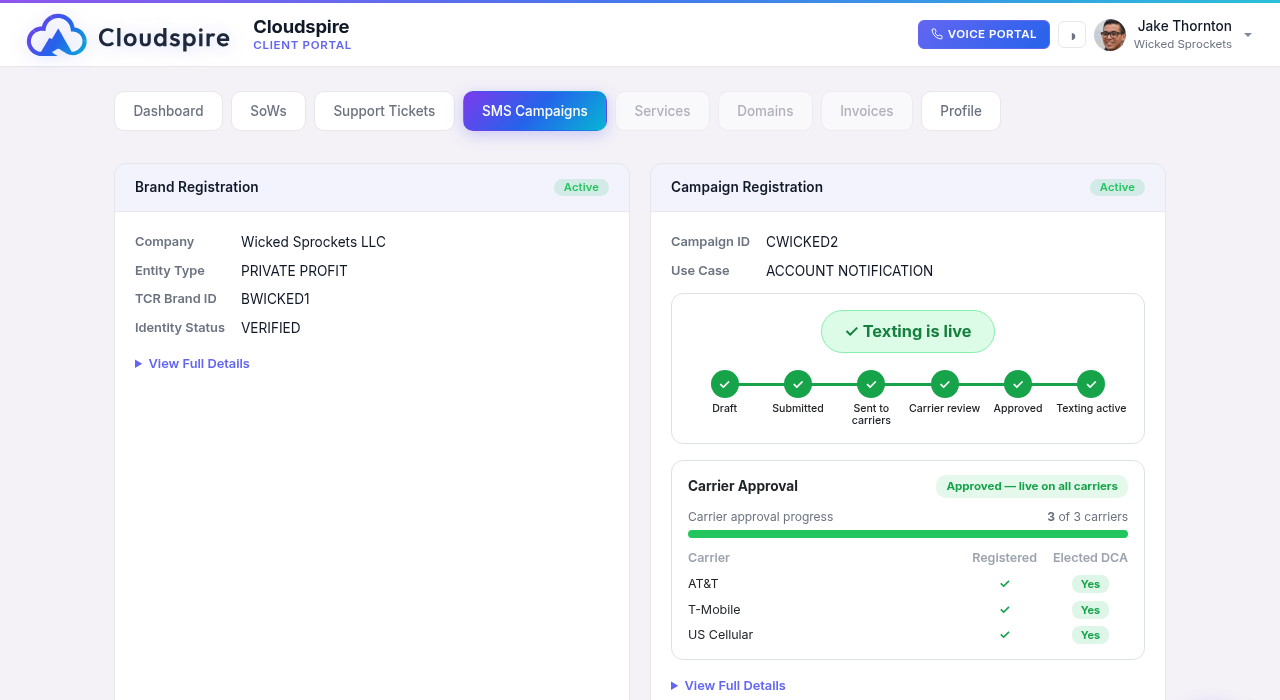
The carrier-by-carrier approval breakdown (which carriers have registered and approved your campaign) and the activity timeline of every step are shown directly on the campaign card; you don't have to open anything to see them. Your campaign is only fully deliverable once every carrier has approved it; until then you will see it progress carrier by carrier.
Both the brand and the campaign also carry a View Full Details control. Expand it to review exactly what you submitted: for a campaign, its description, message flow, sample messages, and keywords; for a brand, its contact and business details.
At the top of the campaign you’ll see a progress bar that fills in left to right as your campaign moves through every stage: Draft → Submitted → Sent to carriers → Carrier review → Approved → Texting active. A single status pill above it tells you the headline state at a glance (for example “Texting is live” once every carrier has approved and your numbers are assigned). Below it, the Carrier Approval panel breaks the work down carrier by carrier so you can see exactly which mobile carriers have registered and elected to deliver your messages.
Approval Timeline
| Phase | Typical Timeline |
|---|---|
| Cloudspire review | Within 1 business day |
| Brand identity verification (TCR) | A few minutes after Cloudspire approval |
| Campaign carrier approval | 3-5 business days is typical, though carrier backlogs can stretch it to several weeks. Cloudspire has no control over carrier review times. |
| Sole proprietor brands | May be faster, but more limited |
Cancelling Your Campaign
If you no longer need a registered campaign, open it on the SMS Campaigns tab and click Cancel Campaign. You’ll be asked to confirm twice; here’s what happens:
- Cancelling turns off the campaign’s automatic renewal at the carrier registry. Your campaign keeps working until its paid-through renewal date, which is shown on the campaign card.
- Until that date you can change your mind: click Resume Auto-Renewal and the campaign renews normally with no interruption (your account must be in good standing).
- On the renewal date the campaign expires and its numbers are no longer registered for 10DLC messaging. An expired campaign cannot be restored: texting again means registering a new campaign, which goes through carrier review like any new registration.
- Once expired, the campaign stops counting against your plan’s campaign allowance, so its slot is free for a replacement.
Fees
| Item | When Charged |
|---|---|
| Brand submission | Per submission, when approved and submitted to TCR |
| Campaign submission | Per campaign, when approved and submitted |
| Campaign resubmission (after a decline) | Charged on every resubmission; each resubmission is a new carrier filing |
| Brand resubmission (after rejection) | Per resubmission |
| Text messages | Monthly: your text message allowance (the SMS Message Package on a Voice plan, or the AI SMS allowance included with a paid Cloudspire AI plan), plus its per-message rate for any messages beyond the included amount |
The brand submission fee and the campaign submission fee are shown on the SMS Campaigns tab itself; the exact amount appears on the card before you submit, and again before any resubmission, so you always see what will be added to your next invoice. Both are added to your next Cloudspire invoice. There are no separate carrier fees: carrier charges are included in your text message allowance and its per-message rate.
Fixing Returned Submissions
A submission comes back to you in one of two ways, and the status pill tells you which:
- The Cloudspire team returns it for changes. Your submission goes back to Draft. Click Continue Editing, make the corrections, and submit again.
- The Campaign Registry or a carrier turns it down. Your brand shows Rejected or your campaign shows Declined, with the feedback shown right on the card. Click Edit & Resubmit.
- Read the feedback carefully; it tells you what was wrong.
- Open the form with Continue Editing or Edit & Resubmit.
- Update the relevant fields and click Submit for Review again.
A resubmission fee applies to a brand or campaign that was rejected or declined; the exact amount is shown on the card before you submit.
Frequently Asked Questions
Common questions about registration, timing, the 49-number limit, and changing a campaign are answered in the SMS Campaigns section of the Frequently Asked Questions page.