


Voicemail
Listen to messages, download recordings, manage your greetings, and delete old voicemails.
The Voicemail tab lets you listen to your voicemail messages, download recordings, delete old messages, and manage your voicemail greetings, all from your browser.
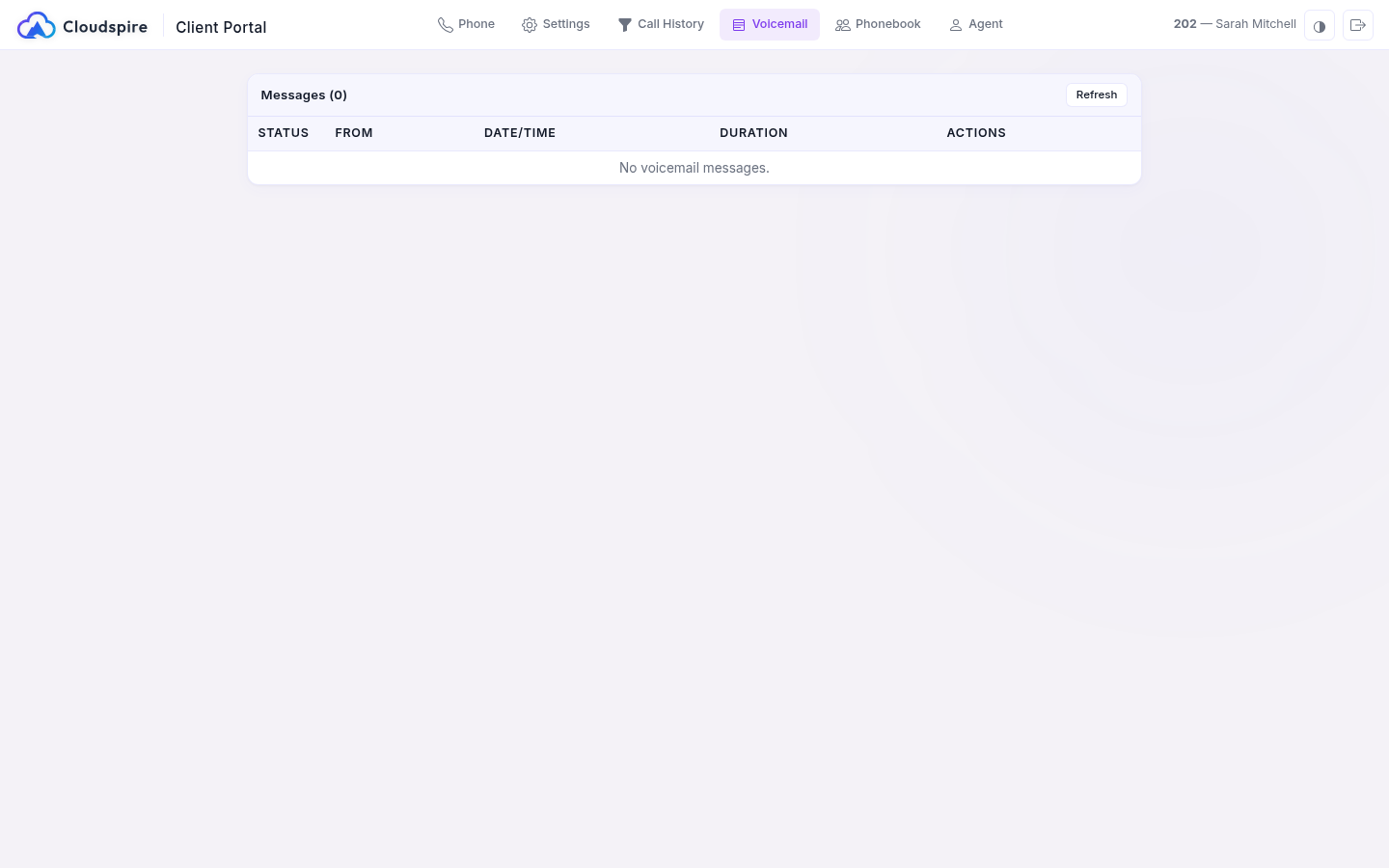
Messages
The messages table shows all voicemails in your mailbox:
| Column | Description |
|---|---|
| Status | New (unheard) or Saved (already played) |
| From | The caller ID of the person who left the message |
| Date/Time | When the message was received |
| Duration | The length of the voicemail message |
| Actions | Play, Transcript (when available), Download, and Delete buttons |
Playing a Message
Click the play button next to any message. An inline audio player expands below the message row. The message is marked as Saved as soon as you press play, whether or not you listen all the way through. Click the play button again to collapse the player.
Forwarding a Message
The Voice Portal and the Cloudspire app cannot forward a voicemail to another mailbox. To pass one on, forward the voicemail email you received, or download the recording and send it. From a phone you can forward it: dial *97, play the message, press 8, enter the other mailbox number and press #, then press 2 to send it as is (or 1 to record an introduction first). It can only go to mailboxes in the same location as yours.
Downloading a Message
Click the Download icon to download the voicemail as a WAV file. The file is named with your mailbox and the message timestamp for easy reference.
Deleting a Message
Click the Delete button and confirm the prompt to permanently remove the message. Deleted messages cannot be recovered.
Transcripts
If voicemail transcription is enabled for your extension, a Transcript button appears next to each message. Click it to view an AI-generated text transcript of the voicemail. This is useful for quickly scanning message content without listening to the recording.
Refresh
When a new voicemail arrives, a badge on the Voicemail tab updates on its own within about 30 seconds to let you know something is waiting. The message list itself does not refresh on its own; click Refresh in the messages header, or leave the tab and come back, to pull in new messages.
Voicemail Greetings
Voicemail greetings (unavailable and temporary) are managed in the Settings tab under the Voicemail section. There you can upload, play, and delete custom greetings.
Tips
- New voicemails are marked with a blue New badge. Once you press play they change to Saved.
- Use the Download icon to save important messages before deleting them.