


Phonebook
Find contacts in your shared directories and call or text them with one click.
The Phonebook tab gives you access to contact directories that your administrator has assigned to your extension. You can browse contacts, search by name or number, and click to dial directly through the softphone.
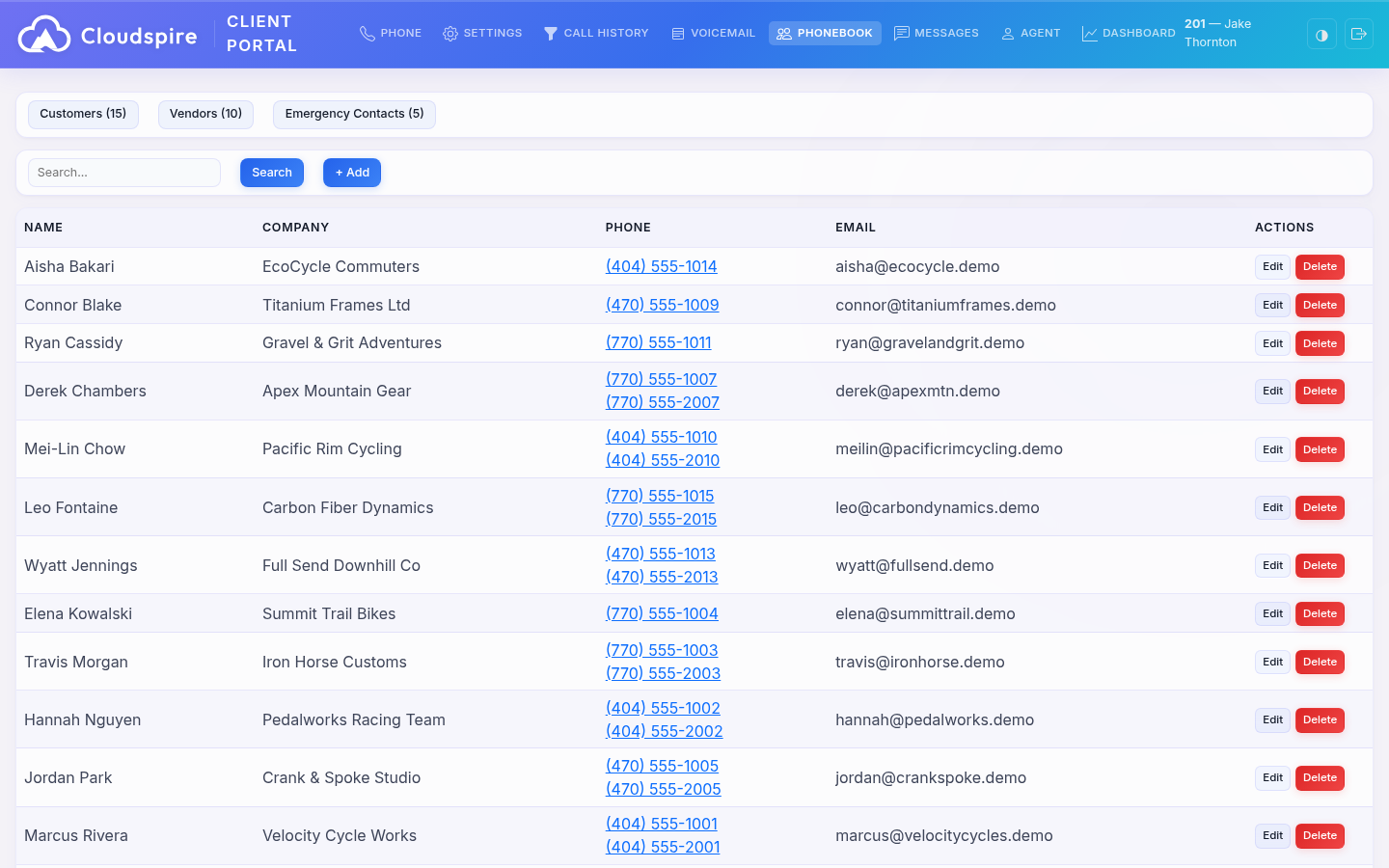
Viewing Phonebooks
If your extension has one or more phonebooks assigned, they appear as tabs at the top of the Phonebook section. Click a phonebook name to view its contacts. The contact count is shown in parentheses next to each name.
If no phonebooks are assigned, a message will indicate that no phonebooks are available. Contact your administrator to have phonebooks assigned to your extension.
Contact Information
Each contact displays the following fields:
| Field | Description |
|---|---|
| Name | The contact's first and last name (or company name if no personal name is set) |
| Company | The contact's company or organization |
| Phone | One or more phone numbers (work, mobile, home, other). Each is a clickable link. |
| The contact's email address |
Searching
Use the Search field at the top of the contacts list to filter by name, company, or phone number. Type your search term and click Search or press Enter. The search matches across first name, last name, company, work phone, and mobile phone fields.
Click to Dial
Phone numbers in the phonebook are clickable. Clicking a number will:
- Switch to the Phone tab
- Automatically dial the number through your softphone
The softphone must be in the Ready state for click-to-dial to work.
Clicking a number while you're on a call
If you are already on a call, clicking a phonebook number does not start a second call; it opens the transfer dialog with that number already filled in. From there, choose Blind Transfer to hand the call straight over, or Attended Transfer to speak with them first. This makes the phonebook a quick way to look someone up and transfer a caller to them without typing the number.
Adding and Editing Contacts
An ordinary shared phonebook can be edited by anyone it is assigned to, so on those you will see additional options:
- + Add button: Opens a form to create a new contact
- Edit button: Opens the edit form for an existing contact
- Delete button: Removes a contact after confirmation
Phonebooks the system builds for you, such as the Company Directory of your colleagues' extensions, are read-only, so those buttons do not appear on them.
If none of your phonebooks shows + Add, no phonebook you can edit is assigned to your extension, and Spire cannot add contacts for you either. Only a Normal phonebook can be edited. Ask your company's phone system administrator (who may work at your company rather than at Cloudspire) to assign you one: on the Extensions screen of the admin portal they edit your extension, choose a Normal phonebook in Add Phonebook on the Phonebooks card, click Add, then Save Changes. If there is no Normal phonebook to give you yet, your administrator first creates one on the Phonebooks screen with + Add Phonebook, because every phonebook made there is a Normal one. Giving you the Company Directory (shown as Directory on the card) does not help: it stays read only.
You can also ask Spire, the assistant behind the Need a hand? button, to add a contact for you: send it the name and phone number. It can add to the same phonebooks you can edit here. It shows the contact on a card with every detail it will save, and nothing is saved until you press Add contact. If you can edit more than one phonebook, Spire asks which one. Spire can add a new contact but not change or delete one; do that here.
When adding or editing a contact, you can fill in the following fields:
- First Name, Last Name
- Company
- Work Phone, Mobile, Home Phone, Other Phone
- Group (a tag for organizing contacts)
- Notes
Click Save (or Add) to save the contact, or Cancel to return to the contact list.
Pagination
Large phonebooks are paginated. Use the page navigation at the bottom of the contact list to browse through pages.