


Login & Account
Sign in with a magic link, passkey, or password, and manage your password and session.
The Customer Portal is accessed through a web browser. Most users arrive here for the first time by clicking the magic link in the welcome email their administrator sent them; no password required.
First-Time Access: Welcome Email
When your administrator provisions your extension, you receive a welcome email that contains:
- A magic-link button that signs you straight into the portal; single-use, expires in 7 days.
- A QR code for the Cloudspire mobile app; scan once with the app and it's fully configured.
- Your voicemail PIN (shown inline, if voicemail is enabled).
You do not receive a password in the welcome email. If your magic link has expired, click Forgot password? Email me a sign-in link on the login screen to have a fresh recovery link sent to you, or ask your administrator to re-send the welcome email.
Signing In (Subsequent Visits)
The portal supports two sign-in methods. Pick whichever is easiest for the way you work:
- Passkey: Touch ID, Face ID, Windows Hello, a security key, or a password manager (iCloud Keychain, Google Password Manager, 1Password). Fastest and phishing-resistant. Enroll once from the Passkeys (Security) card in your Profile after any sign-in; see Enrolling a Passkey below.
- Password: email address + password. Always available as fallback.
If you have forgotten your password or haven’t set one yet, use Forgot password? Email me a sign-in link on the login screen; see Login Trouble & Account Recovery below.
Sign in with a passkey
- Open the portal URL in your browser. The Sign in with a passkey button appears on any browser that supports passkeys. The password form is shown above it, unless you have already enrolled a passkey in this browser, in which case the form is tucked behind a Sign in with a password instead link.
- Click Sign in with a passkey
- Confirm with Touch ID / Face ID / PIN / security key
- You land on your portal dashboard
Sign in with a password
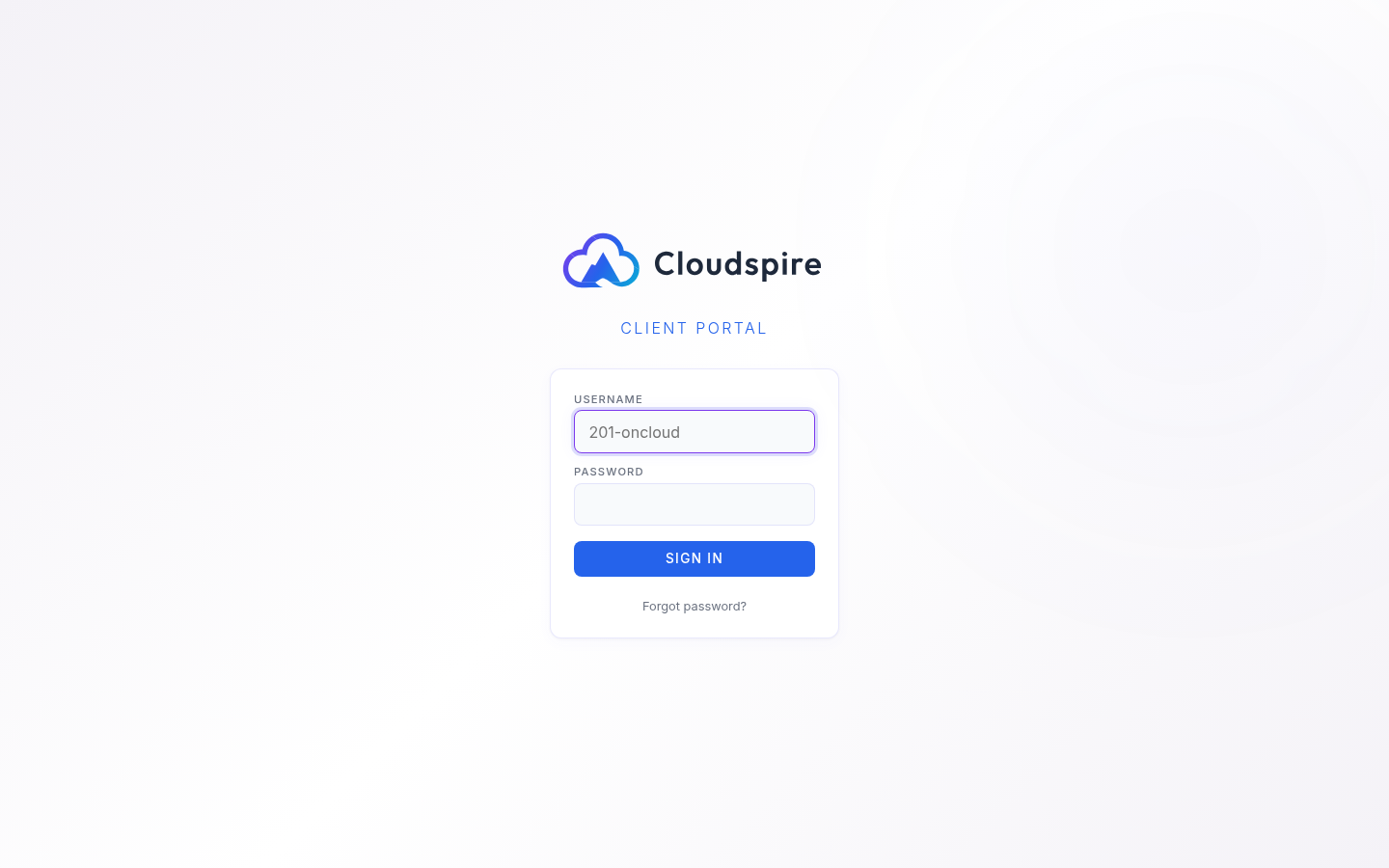
- Open the portal URL in your web browser
- Enter your email address: the same email your administrator set on your extension (voice users) or the email on your CRM account (client users)
- Enter your password
- Click Sign In
If you haven’t set a password yet, use Forgot password? Email me a sign-in link to get a recovery link delivered to your email. This is the fastest path if you’ve lost your password too.
Enrolling a Passkey
- Sign in using your password or a recovery link
- Click your avatar in the top right, then Profile
- Scroll to the Passkeys (Security) card
- (Optional) Label the new passkey, e.g. “iPhone” or “Work MacBook”
- Click Add a passkey for this device and confirm with Touch ID / Face ID / Windows Hello / security key
- On your next visit to the login page, click Sign in with a passkey to use it
You can enroll up to 10 passkeys across different devices and password managers. A passkey in a cloud-synced manager (iCloud, Google, 1Password) works on every device signed into that account; recommended so a lost or replaced device doesn’t lock you out. Revoke a passkey any time from the same Passkeys (Security) card.
A passkey belongs to the web address you sign in at, and one passkey signs you in to every Cloudspire portal you use there (the Voice Portal, the client portal and, for administrators, the admin portal), because they share one sign-in. A passkey made on a different address, such as a test portal, does not work here.
Passkeys inside the Chrome installed app (PWA)
The portal can be installed as a Chrome desktop app on Windows and macOS. The installed app window cannot read the operating system’s passkey store directly (Windows Hello, iCloud Keychain, etc.); this is a Chrome platform limitation that Cloudspire does not control. A passkey you enrolled in the regular Chrome browser will not appear when you click Sign in with a passkey inside the installed app.
If you want to use a passkey from inside the installed app, you have two options:
- Use your phone (recommended): click Sign in with a passkey; when it fails to find a local passkey, Chrome offers a QR code. Scan it with your phone’s camera and approve the sign-in on your phone. The phone-as-passkey flow works reliably from inside the installed app, and any passkey saved on your phone (iCloud Keychain, Google Password Manager) is available.
- Use your password instead: the password form is still available inside the installed app and works the same as in the browser.
If you prefer to sign in with the local Windows Hello / Touch ID passkey, sign in from a regular Chrome browser tab rather than the installed app.
Session Duration
Your session remains active for 8 hours with a sliding window; each interaction resets the timer. After 8 hours of inactivity, you will be returned to the login screen and need to sign in again.
Closing the browser does not sign you out: the same browser on your computer stays signed in until those 8 hours pass. Keeping the Voice Portal open in a browser tab keeps you signed in by itself, because the open tab checks in about every 15 minutes, as long as the computer stays awake and online. There is no remember me or stay signed in option, and the 8 hours cannot be made longer for one person or one company. If you sign in often, enroll a passkey (see Enrolling a Passkey) so signing in again is quick.
Rate Limiting
For security, the portal limits sign-in attempts. After 10 failed password attempts from the same network within 15 minutes, further attempts are blocked until the window passes. Passkey sign-in has its own, smaller attempt limit.
Recovery if you lose a passkey device
If you lose all devices that hold a passkey, sign in with your password or request a recovery link with Forgot password? Email me a sign-in link: both remain available. Revoke the lost device’s passkey from the Passkeys (Security) card in your Profile on the new device. If you’ve also forgotten your password, ask your administrator to reset it.
Setting a Password (Optional)
Some users prefer the classic email/password sign-in. Once you’re logged in via a magic link, set a password at any time:
- Go to the Settings tab and scroll to the Portal Password card, or open Profile in the user dropdown and scroll to the Set Password card
- Enter and confirm your new password
- Click Change in Settings, or Update Password in Profile
Once a password is set, the same password works across both the voice portal and the CRM portal (for users with access to both).
Login Trouble & Account Recovery
If you cannot sign in (a forgotten password, no password set yet, or a lost second factor) click Forgot password? Email me a sign-in link on the login screen and enter your account email. We email you a secure, single-use link (valid 30 minutes). Opening it shows a short confirmation page; press the button there and you land in the Account Setup & Recovery wizard, where you set a password and choose a sign-in method (a passkey or an authenticator app). Customer (non-admin) accounts can take a one-click fast path that signs you straight in; administrators are required to set a password and a second factor. The wizard also offers backup codes so you always have a way back in.
If you have lost access to everything (no password, no second factor, and no recovery email) contact your system administrator or the help desk.
Password Requirements
Passwords must be at least 8 characters long. For best security, use a mix of uppercase letters, lowercase letters, numbers, and special characters.
Changing Your Password
To change your password after logging in:
- Go to the Settings tab
- Scroll to the Portal Password card
- Enter your current password, when the card asks for it
- Enter and confirm your new password
- Click Change
You can also change it from the Change Password card in your Profile: the button there reads Update Password.
You are asked for your current password only when your account already has one. If you have never set a password, because you sign in with a passkey or arrived through a sign-in link, neither screen asks for one, and the Profile card is headed Set Password rather than Change Password.
You will remain logged in after changing your password.
Signing Out
To sign out, click the sign-out icon in the top-right corner of the navigation bar. On mobile, open the menu and tap Sign Out.
Tour of the Portal
Once you're signed in, this short tour walks through the main dashboard: navigation tabs, the softphone, quick actions, recent calls, and the team sidebar, so you know where everything lives.
Theme
The portal supports dark, light, and system (auto-detect) themes. Click the half-circle icon in the navigation bar to cycle through theme options. Your preference is saved in your browser and persists across sessions.