


Your AI Agents in the Cloudspire App
Answer your agents' questions, handle the requests they take, and run them from your iPhone.
The Cloudspire iPhone app has two sides. The Voice side is your business phone. The AI side is where you work with your Cloudspire AI agents: the requests they take from callers, the questions they ask you mid-call, what they said and did, and the controls to pause them, close for the day, or leave them a note. If you use both, the last button in the tab bar switches sides: Voice on the AI side and AI on the Voice side. On iOS versions before 26, use the Voice and AI switch at the top of the app instead.
Home
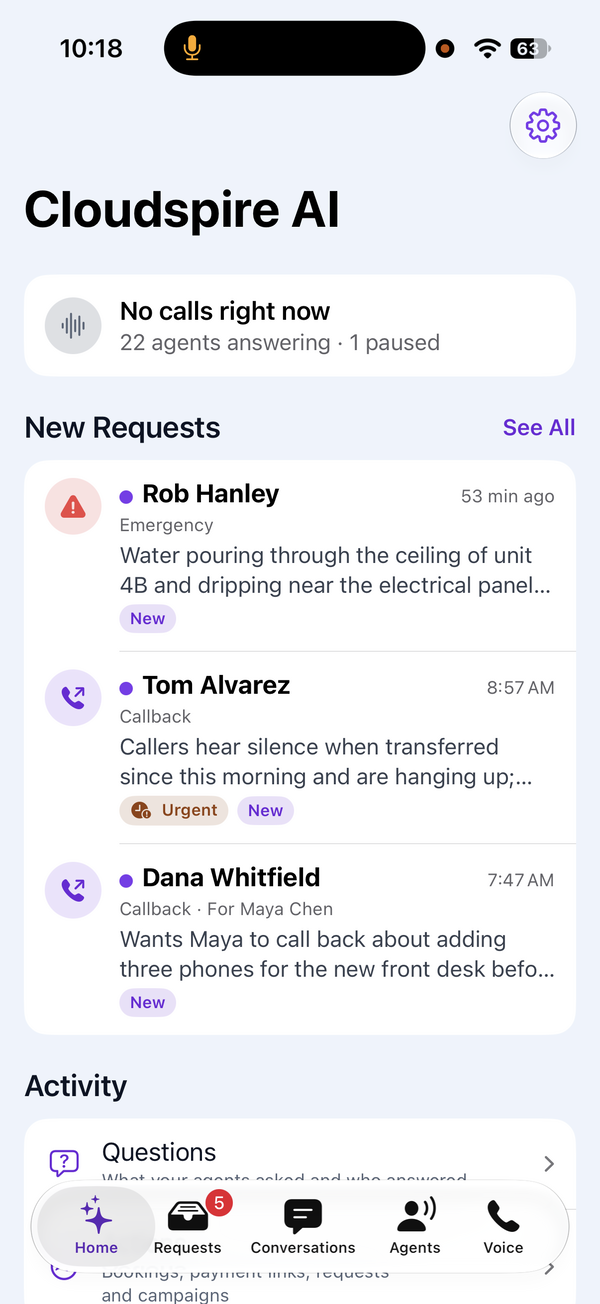
The AI side opens on Home. It shows whether your agents are on calls right now and how many are answering or paused, any question an agent is waiting on you to answer, recent transfers to your cell, and your newest requests, with See All to open the inbox. Under Activity are the Questions list and the Actions feed. What you see depends on what you have been given.
If you have both sides on iOS 26 or later, Settings is the gear at the top right of Home. Otherwise it is the last tab. Sign Out is at the bottom of Settings on either side.
Getting access
Sign in with your email and password, or scan the QR code in your welcome email with the app installed. What you see depends on what your administrator has given you on Identity and Access:
- AI Requests: the requests inbox and its notifications.
- AI Agents: the agents list, their controls and the owner's note.
- AI Call History: the conversations your agents had.
- AI Campaigns: pausing and resuming campaigns.
You can sign in before anything is given to you. The app then shows No access granted until your administrator adds a permission, and it updates on its own when they do. If your extension is moved to someone else or removed, the app signs you out, and you sign in again to see what you have now.
Requests from your agents
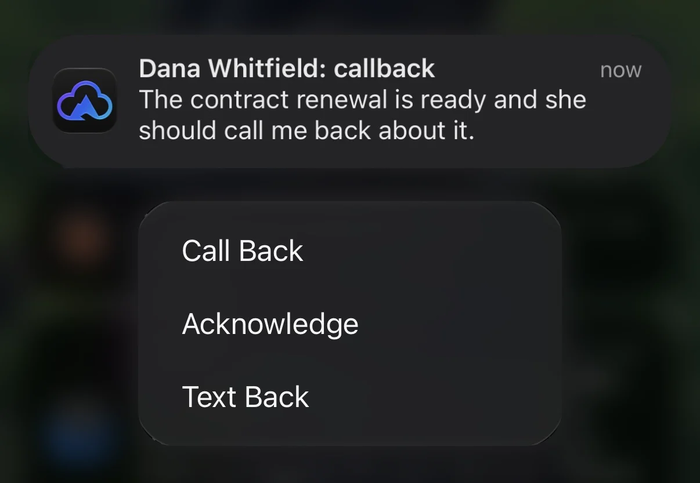
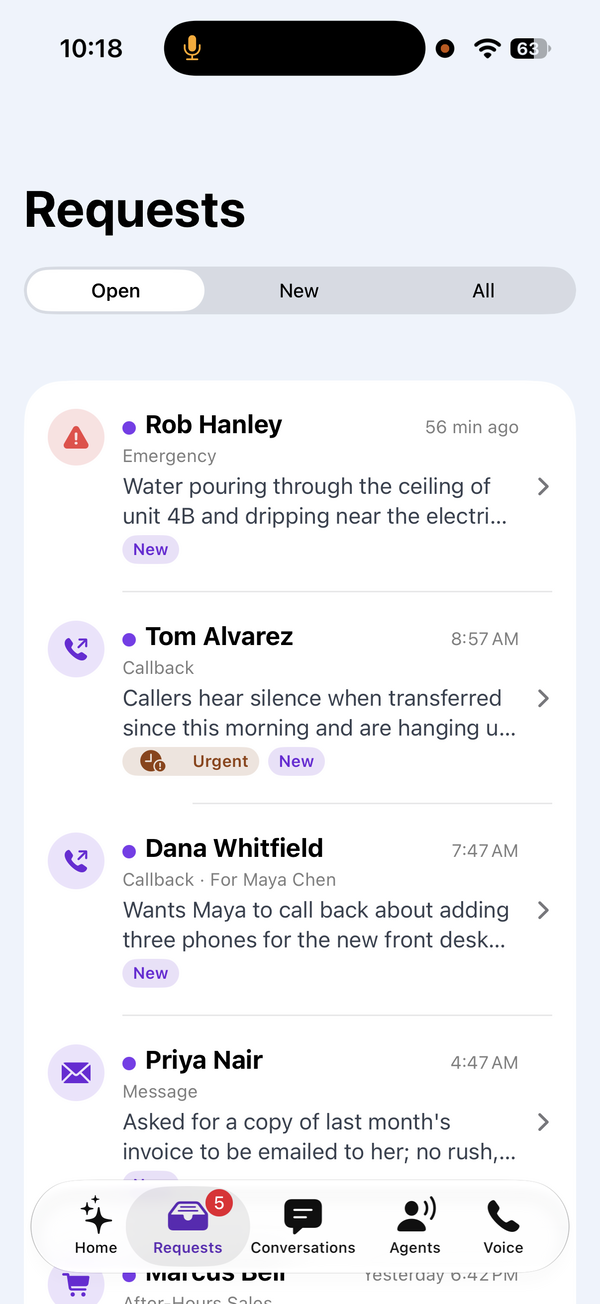
When an agent takes a message, a callback request, an after-hours inquiry or an emergency, it lands in the app's Requests inbox and you get a notification at once. From the notification you can Call Back, Acknowledge or Text Back without opening the app; calls and texts go out from your own phone. In the inbox, mark a request Acknowledged, Resolved or Spam, or reopen it. The inbox is the same list your administrators see in the portal, so everyone works from one set of requests.
Emergency requests arrive as time-sensitive notifications. While Do Not Disturb is on for your extension, no AI notifications are sent to your phone, emergencies included; the inbox and the badge catch up when you open the app.
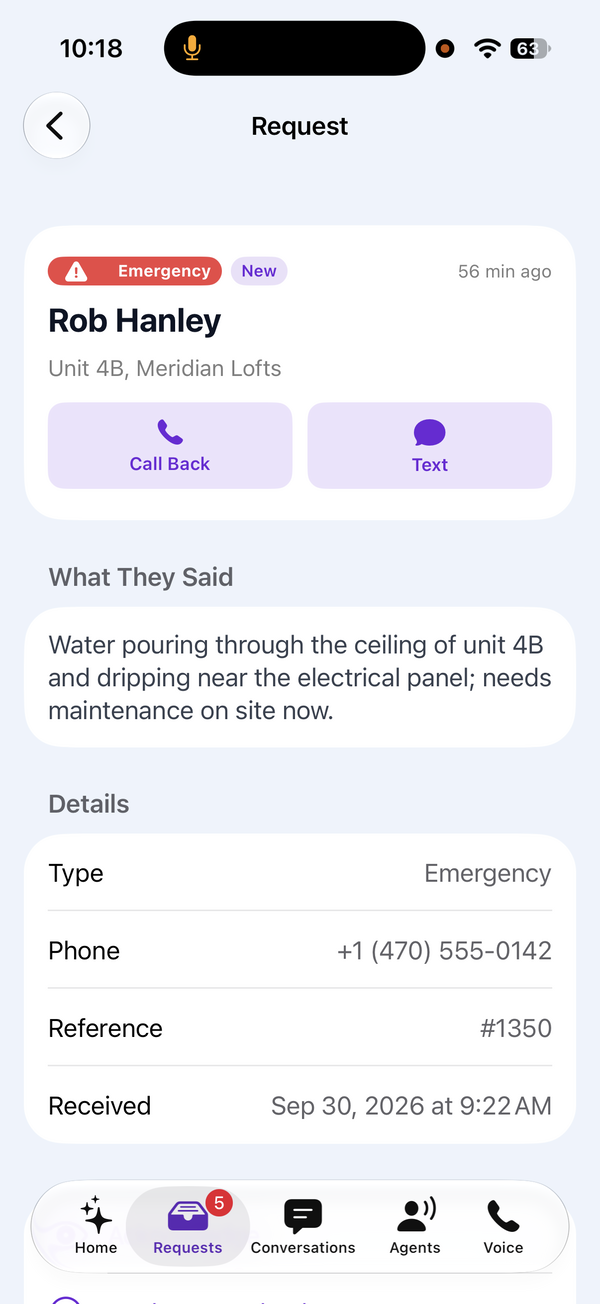
Open a request to see what the caller said and its details. At the top are Call Back and Text when the caller left a number, and Email when they left an email address. New requests carry a dot and a New label until someone acknowledges, resolves or marks them as spam.
Ask the owner
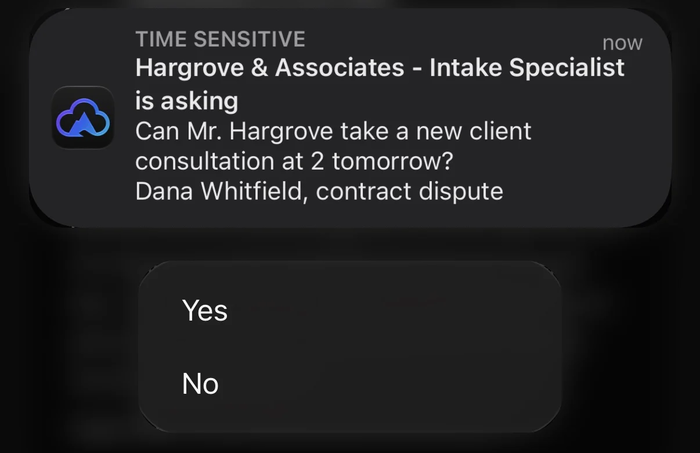
An agent can ask your team a quick question while a caller holds, such as “Can we fit Mrs. Diaz in at 3 today?” with Yes and No. The question arrives as a notification with the answers as buttons; tap one and the agent carries on with the caller. The first person to answer decides, and everyone else's copy of the question clears. If nobody answers in time, the agent does what your administrator set for that case, such as taking a message.
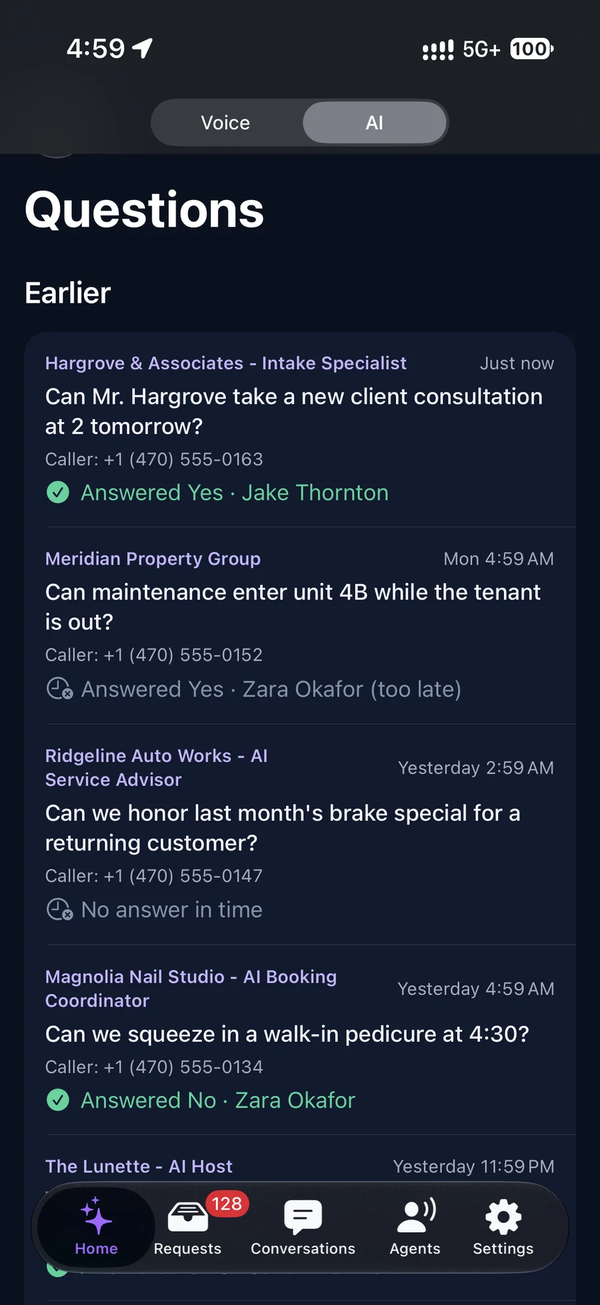
Asking the owner is turned on per agent by your administrator, with the agent's Ask the Owner tool. You can stop receiving questions with Questions From Agents under Settings on the AI side and still answer one from the Questions list on Home, which shows what each agent asked, who answered, and the questions nobody answered.
Transfers to your mobile
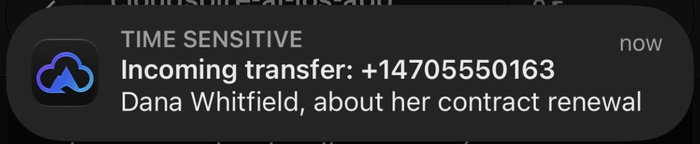
When an agent transfers a caller to your mobile number, the app shows who is calling and why just before your phone rings, if your administrator has turned on the agent's Mobile Transfer Heads-Up tool. The call itself shows your business number. Keep your mobile number up to date under Settings on the AI side; if you have a phone extension, it is the same number as your ClearLine number and is changed through ClearLine.
Conversations
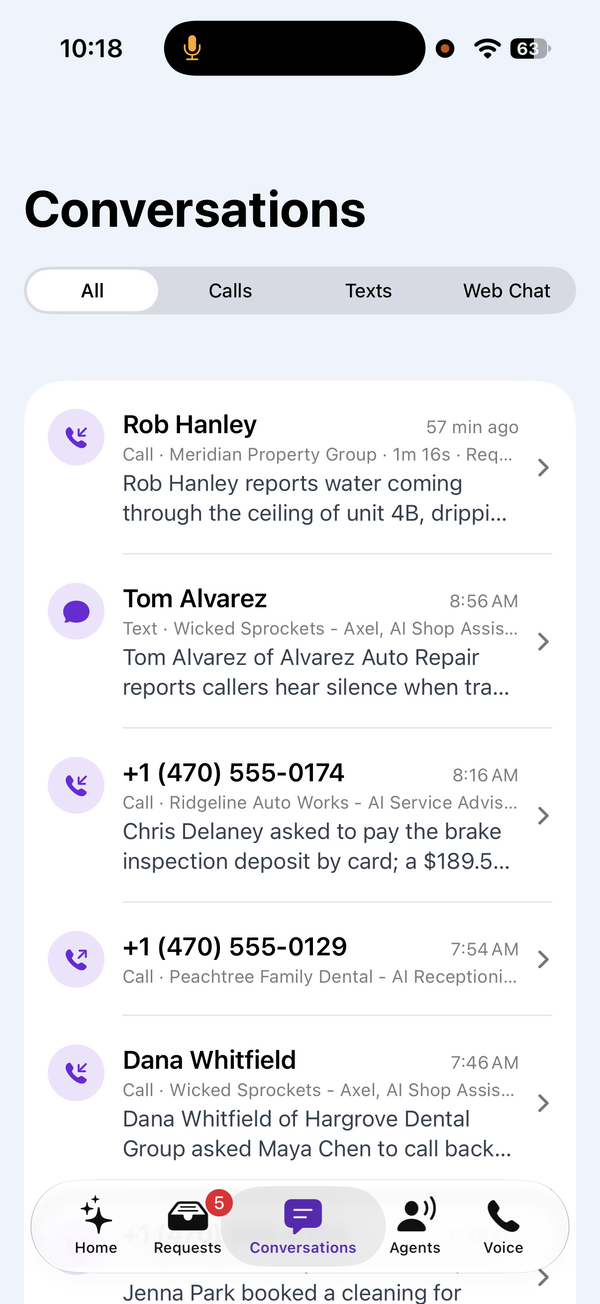
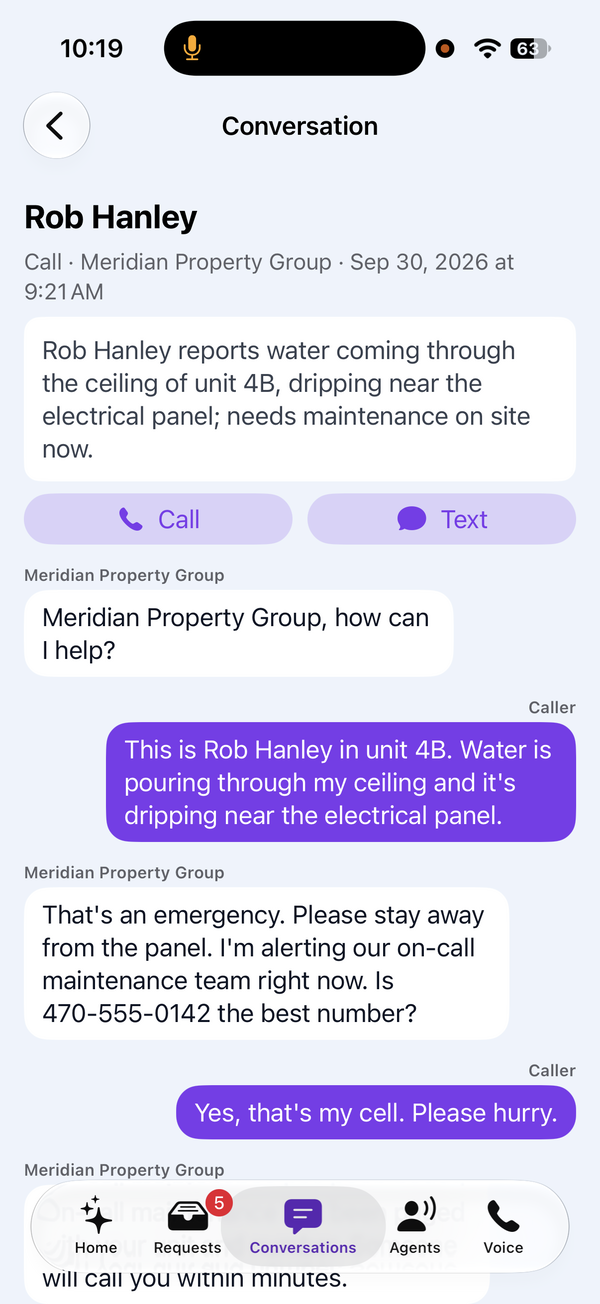
The Conversations list shows your agents' recent phone calls, text conversations and web chats, newest first, with a short summary of each. Search by name, number or topic, and open one to read what the caller and the agent said.
Your agents
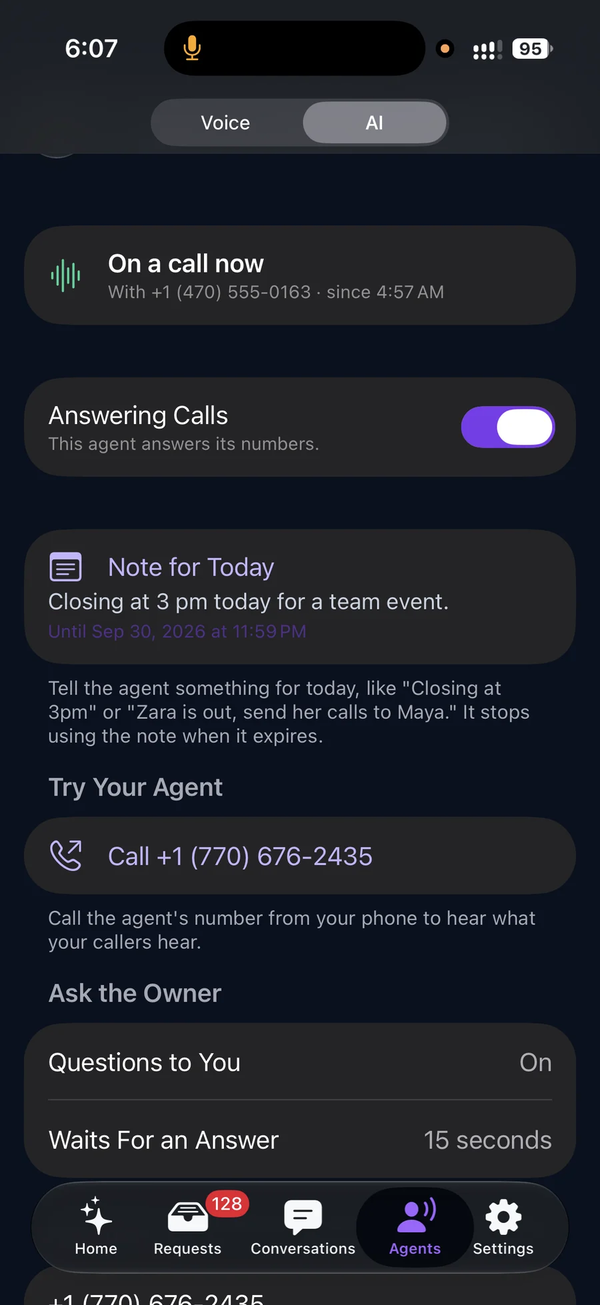
The Agents list shows each agent, the numbers that reach it, and whether it is on a call right now. From here you can:
- Pause or resume an agent.
- Close or open the business with the same Open and Closed switch as your phones. If your hours also follow a schedule, choose Closed to close now, or Schedule to go back to your usual hours. When your hours follow a schedule only, change them in the Cloudspire portal instead.
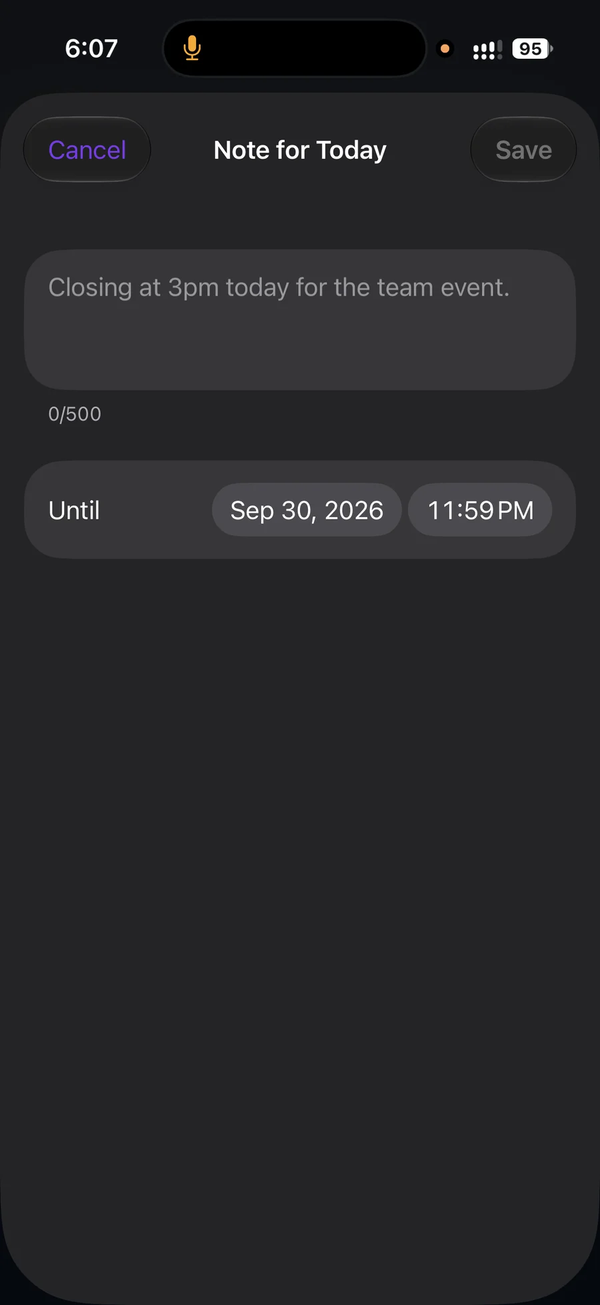
- Leave the agent an owner's note until a time you choose, such as “We close at 3 today”. The agent follows it on calls, texts and chats until it expires.
- Try your agent: call one of its numbers from your phone, or have it call your mobile through one of its active campaigns.
Making changes needs the Edit level on AI Agents; with View only, you can see everything but change nothing.
Actions
The Actions feed, under Activity on Home, shows what your agents did for callers: appointments booked, appointments callers moved or cancelled, payment links sent, and requests taken, with each campaign's totals (queued, placed, reached and voicemail). With AI Campaigns you can pause or resume a campaign from here; pausing also cancels the calls still waiting in its queue.
Good to know
- The Cloudspire app is for iPhone. There is no Android app today.
- The AI side shows what was said in each conversation as text; it does not play call recordings.
- Notifications need your permission in the iPhone's Settings for Cloudspire.