


Agent Panel
Control your queue logins and pauses and watch live queue stats and your daily numbers.
The Agent tab is available when your extension is a member of one or more call queues. It provides controls for logging in and out of queues, pausing with reason codes, real-time queue visibility, and personal performance metrics for the current day.
If you are not assigned to any queues, the Agent tab will not appear in your navigation.
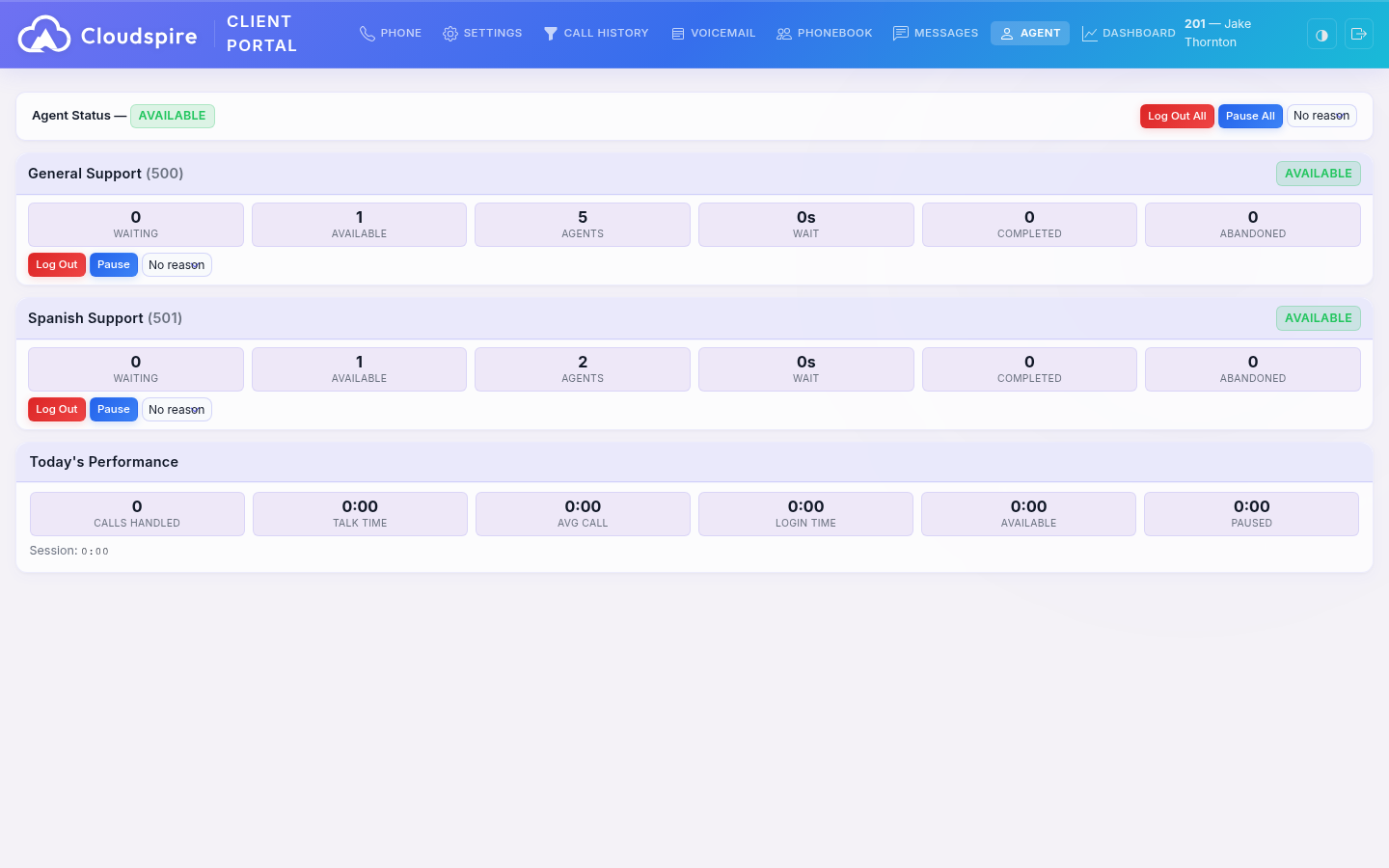
Agent Status
The status bar at the top of the Agent panel shows your overall agent state with a color-coded badge:
| Status | Indicator | Meaning |
|---|---|---|
| Available | Green badge | You are logged in and ready to receive queue calls in at least one queue |
| Queue Call | Blue badge | You are on an active call that came through a queue. A call timer shows the duration. |
| On Call | Cyan badge | You are on a personal or direct call (not from a queue), for example, an outbound call or a direct inbound call to your extension. |
| Ringing | Yellow badge | A queue call is currently ringing your phone. |
| Paused | Yellow badge | You are logged in but paused in one or more queues (not receiving calls) |
| Logged Out | Gray badge | You are not logged in to any queues |
Bulk Controls
The status bar includes bulk action buttons that affect all of your assigned queues at once:
- Log In All / Log Out All: Logs you in to (or out of) every queue you are assigned to.
- Pause All / Unpause All: Pauses (or unpauses) you across all queues. When pausing, you can optionally select a pause reason from the dropdown. The “Pause All” dropdown shows the union of global reasons plus all queue-specific reasons for your assigned queues.
Bulk controls are convenient when you want to change your status in every queue with a single click.
Queue Cards
Below the status bar, each queue you are assigned to is displayed as a card showing:
- The queue name and number
- Your status in that specific queue (Available, Paused, or Logged Out)
- Real-time statistics for the queue (see below)
- Per-queue action buttons for individual queue control
Per-Queue Actions
Each queue card has its own set of action buttons, allowing you to manage your status in each queue independently:
- Log In / Log Out: Log in to or out of this specific queue without affecting other queues.
- Pause / Unpause: Pause or unpause in this specific queue. When pausing, select a reason from the dropdown next to the button. The per-queue dropdown shows only that queue’s assigned reasons plus global reasons.
For example, you might be logged in and available in "Sales" but paused for a break in "Support". Each queue’s pause dropdown may show different reasons depending on what the administrator has configured.
Pause Reasons
The available pause reasons are configured by your administrator and may vary by queue. Global reasons (such as Lunch and Break) appear in every queue, while queue-specific reasons (such as Prospecting or Escalation Review) only appear when relevant to that queue. Example reasons include:
- Lunch (global)
- Break (global)
- Meeting (global)
- Training (global)
- Prospecting (Sales queue only)
If no pause reasons are configured, the reason dropdown does not appear and you can pause without a reason. Your pause reason is visible to supervisors and recorded in queue logs.
Pausing from a Desk Phone
To pause from your physical desk phone, dial *51 followed by the reason code assigned by your administrator (codes 1-99). Each pause reason has a code visible in the Quick Reference at the bottom of the Agent Panel:
| You Dial | Result |
|---|---|
*51 | Pause or unpause without a reason |
*513# | Pause with reason code 3 (# confirms single-digit codes) |
*519# | Pause with reason code 9 |
*5110 | Pause with reason code 10 (two-digit codes auto-terminate) |
*5114 | Pause with reason code 14 |
For single-digit codes (1-9), press # after the digit to confirm immediately. For two-digit codes (10-99), the system recognizes the code automatically after two digits. You have 3 seconds to begin entering a code; if you don’t enter one, the pause takes effect with no reason recorded.
Real-Time Queue Statistics
Each queue card displays a grid of live statistics. Updates are delivered in real time via a persistent server connection (Server-Sent Events), typically within 2 seconds of any change. If the real-time connection is temporarily unavailable, the panel falls back to polling every 10 seconds until it reconnects.
| Statistic | Description |
|---|---|
| Waiting | Number of callers currently waiting in the queue. Flashes red when callers are waiting. |
| Available | Number of agents logged in and ready to take calls |
| Agents | Total number of agents logged in to the queue |
| Wait | Longest current wait time among callers in the queue |
| Completed | Total calls answered by agents. A running total since the phone system’s queue statistics were last reset (normally when the phone system restarts) not a daily count. |
| Abandoned | Total calls where the caller hung up before being answered. A running total since the same statistics reset. |
These statistics come directly from the phone system and reflect real-time conditions. The Completed and Abandoned totals count up from the last queue-statistics reset (normally when the phone system restarts) and do not reset at midnight. Your personal daily numbers live in the Today’s Performance section below.
Today's Performance
At the bottom of the Agent panel is a personal performance dashboard showing your metrics for the current day. This section updates every 30 seconds:
| Metric | Description |
|---|---|
| Calls Handled | Number of answered calls today |
| Talk Time | Total time spent on calls today |
| Avg Call | Average duration of answered calls |
| Login Time | Total time you have been logged in to queues today |
| Available | Total time you have been logged in and not paused (ready to receive calls) |
| Paused | Total time you have been in a paused state today |
When you are logged in, a Session timer below the performance grid shows how long your current session has been active.
Real-Time Call Status
The Agent panel detects your phone’s actual state in real time. When you are on any call, the status bar updates automatically:
- Queue Call (blue): You are handling a call that was delivered by a queue. The status bar shows the queue name so you know which queue the call came from, along with the caller’s name and number (when available). A running call timer shows how long you have been on the call.
- On Call (cyan): You are on a personal or direct call, such as an outbound call or a direct inbound call to your extension number. This distinguishes personal calls from queue-delivered calls.
- Ringing (yellow): A queue call is ringing your phone and waiting for you to answer. The status bar shows the queue name and the caller’s number so you can see who is calling and from which queue before you pick up.
When the call ends, your status returns to Available (or Paused, if you were paused before the call). The call timer resets automatically.
SMS Queues
If your administrator has assigned you to an SMS queue, incoming customer text messages appear as claimable conversations in the queue. You pick up an SMS conversation, reply from the portal, and can hand the chat off to another agent, all without leaving the Agent panel.
Notes
- Logging in and out from the portal has the same effect as using the phone feature codes (e.g., dialing the agent login code from your desk phone).
- Your agent status is synchronized; changes made from your desk phone or the portal are reflected in both places.
- Queue calls still ring your desk phone and softphone normally. The agent panel only controls whether the queue system considers you available to receive calls.
- Statistics refresh automatically via a real-time server connection; you do not need to manually reload the page. Queue stats and call status update within seconds. Performance metrics refresh every 30 seconds.
- When you leave the Agent tab and return, the statistics resume updating automatically.