


Messages
Chat with your team, text customers, and handle shared text queues from one tab.
The Messages tab is a unified messaging hub that brings together internal team chat, group conversations, and external SMS, all in one place. Chat with colleagues, create group channels, and text customers or vendors, even mixing internal and external participants in the same conversation.
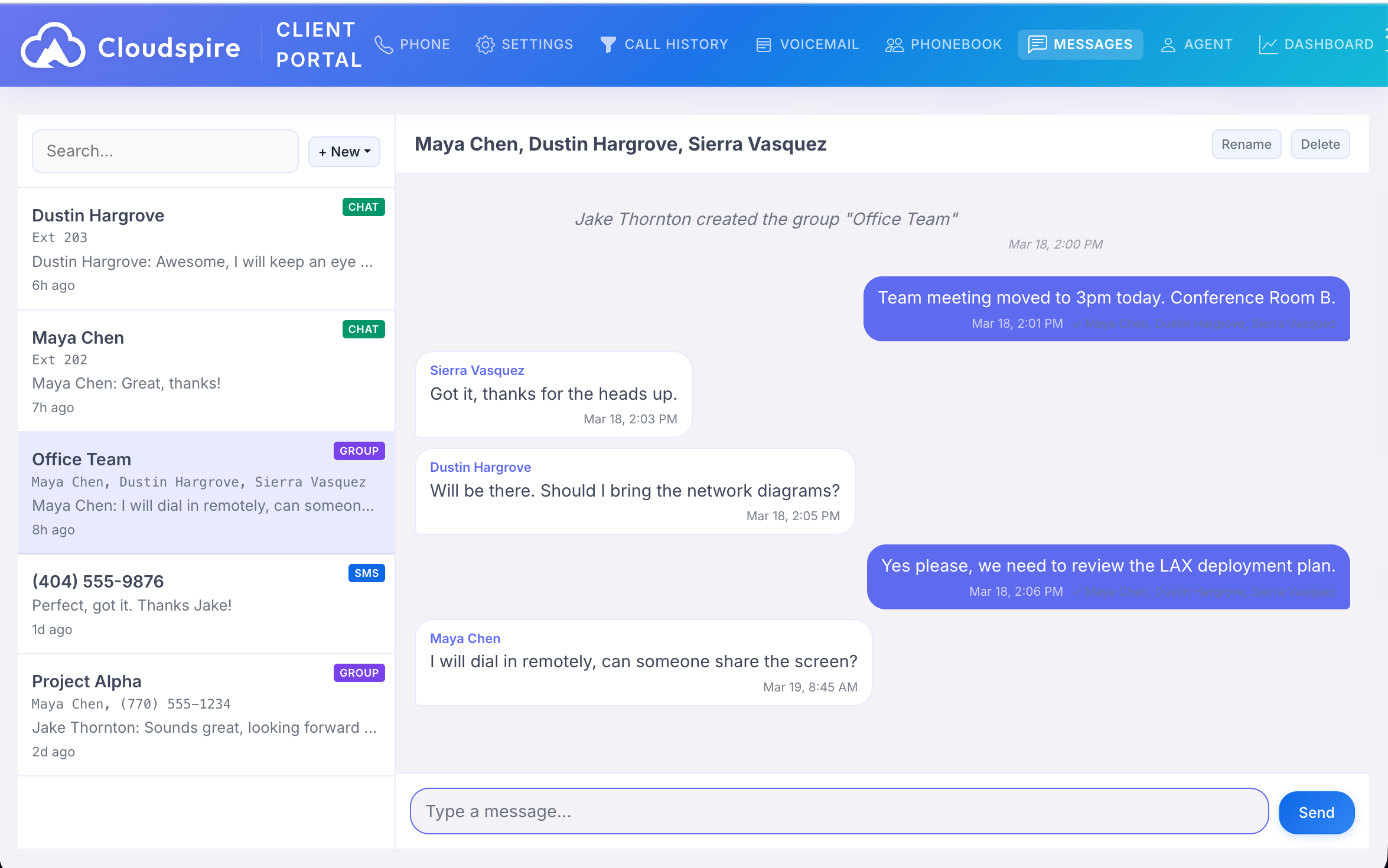
Conversation Types
Three types of conversations, all in a single view:
- CHAT Direct Chat: Private 1:1 messaging between two extensions. Instant delivery, no SMS costs.
- GROUP Group Chat: Named group conversations with multiple team members. Optionally add external phone numbers; they receive messages via SMS.
- SMS Text Message: Send and receive SMS with external phone numbers via your business line. Messages are linked to your extension’s outbound caller ID numbers that have SMS enabled.
Getting Started
Click the + New dropdown to start a conversation:
- Chat: Select a colleague from the extension directory to start a direct chat.
- SMS: Enter a phone number or search your contacts to start an SMS thread.
- Group: Name your group, select team members, and optionally add external phone numbers for SMS participants.
You can also start an SMS conversation directly from the Phonebook by clicking the message icon next to any contact’s phone number.
Real-Time Delivery
Messages appear instantly without refreshing the page. When a new message arrives:
- An alert tone plays (configurable by your administrator).
- A red notification dot appears on the Messages tab.
- If the conversation is open, the message appears immediately.
- Unread counts are shown on each conversation in the sidebar.
Read Receipts
When other participants read your messages, you’ll see a checkmark with their name below your sent message. This works for all internal participants (extensions). External SMS participants do not send read receipts.
Typing Indicators
When a colleague is composing a message in a conversation you share, you’ll see an animated typing indicator at the bottom of the chat area. The indicator appears in real time and automatically disappears after a few seconds of inactivity or when the message is sent.
Typing indicators work in direct conversations and group chats between internal extensions. They do not appear for external SMS participants.
Group Features
- Rename: Click Rename in the chat header to change the group name.
- Add Participants: Add more extensions or external phone numbers to an existing group.
- Leave: Leave a group you no longer need to follow.
- System Messages: Group events (created, renamed, member added/left) are shown as system messages in the conversation.
Mixed Conversations
Group chats can include both internal extensions and external phone numbers. When a message is sent:
- Internal participants see it instantly in the portal.
- External participants receive it as an SMS text message.
This makes it easy to coordinate with vendors, customers, or anyone outside your organization while keeping your team in the loop.
Contact Search
When composing a new SMS or adding a phone number to a group, the phone number field includes a searchable dropdown that finds contacts from three sources:
- Phonebooks: All contacts from your assigned phonebooks, including CRM-synced contacts and automatic caller-name entries. Search by name or number.
- Recent calls: Phone numbers from your recent call history, with caller names when available.
- Existing conversations: Outside participants from your current text-message and group threads.
Phone numbers in the conversation sidebar and message headers are automatically looked up and replaced with names from your phonebook and caller-name services whenever a match is found.
Sending a Message
- Select a conversation from the sidebar, or create a new one with + New.
- Type your message in the compose area at the bottom. To add a picture, click the picture button beside it (see Picture Messages below).
- Press Enter to send, or Shift+Enter for a new line.
Choosing the Number You Text From
To change your texting number, the number your texts come from, choose it when you start a new SMS conversation: the Send from list shows the business numbers you can text from, which are the numbers assigned to your extension for outgoing calls that are also set up for texting. If only one number qualifies, it is used without asking. The iPhone app offers the same list.
A conversation keeps the number it started with. To text the same person from a different number, start a new SMS conversation and choose the other number under Send from.
If a number you expect is missing from the list, it is not set up for texting yet, or it is not assigned to your extension. Your administrator turns texting on for a number in the admin portal (Voice & AI console, DIDs: open the number and choose an SMS Destination) and adds it to your extension’s Outbound Caller ID pool (Voice & AI console, Extensions). Toll-free numbers cannot send texts.
If a text is refused, for example because the person replied STOP or the number cannot send texts, the portal says why when you press Send and keeps your text in the compose area; the refused text is not added to the conversation.
When a new text cannot start, clicking Start Conversation shows a short red message in the bottom-right corner for about three seconds: Enter a valid phone number (the number has fewer than 10 digits); Missing DID (none of your business numbers was offered to text from: either your account does not have the SMS Message Package, or no number assigned to your extension is set up for texting); DID not authorized for SMS (your plan does not include text message campaigns yet, which sending texts needs); That number cannot send text messages (the number you are sending from is not set up for texting); You cannot send text messages from that number (it is not one your extension may text from). For any of the last four, ask your administrator or open a ticket from the Support Tickets tab.
Picture Messages (MMS)
When someone texts you a picture, it renders inline in the conversation; click it to enlarge. Any other kind of attachment appears as a download link.
To send a picture, click the picture button to the left of the compose area and choose a JPEG, PNG or GIF under 20 MB. A preview appears above the compose area with an × to remove it. Add a message if you like, or send the picture on its own, then press Send. You can send one picture per message, in text conversations, team chats and group conversations alike.
Large pictures are shrunk automatically before they go out, so a photo straight from a camera sends quickly and arrives reliably on the recipient’s phone. The recipient receives it as a picture message from your business number. If the text is refused, the picture stays attached in the compose area along with your message.
Per-Extension SMS-to-Desk-Phone Toggle
If you want inbound SMS to also push to your desk phone screen (in addition to the portal and the iOS app), use the SMS to Desk Phone toggle on the Settings page. SMS always goes to the portal and the iOS app regardless of that setting.
Requirements
- Internal Chat: Available to all portal users. No additional setup needed.
- SMS: Receiving inbound texts requires an active SMS Message Package on your account. Sending (outbound) SMS additionally requires a registered 10DLC campaign. Contact your administrator to enable SMS on your phone numbers.
SMS Queues
If your administrator has configured SMS queues, inbound text messages from customers can be distributed to a team of agents rather than going to a single person. When a customer texts a queue-enabled number, the message appears in a special queue section at the top of your Messages sidebar. Any available agent can claim the conversation, and once claimed, all follow-up messages from that customer come directly to you.
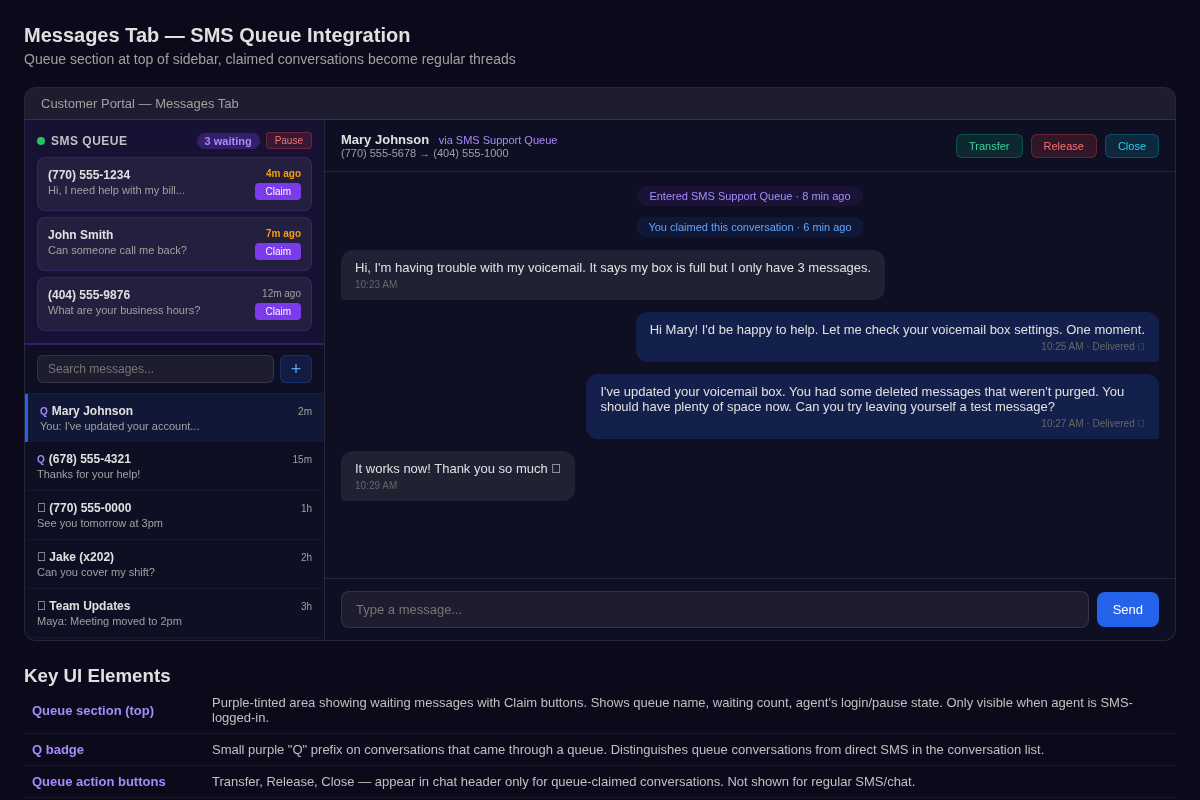
SMS Queue section at the top of the Messages sidebar with waiting conversations and Claim buttons
Logging In to SMS Queues
- In the Agent Panel, you will see an SMS Queues section below your voice queue controls.
- Toggle login for each queue independently from your voice queue login.
- You can pause SMS queue messages (with a reason) without affecting your voice availability.
- When logged in and not paused, waiting queue messages appear in your Messages sidebar.
Claiming a Conversation
- Waiting messages appear in the purple queue section at the top of the sidebar.
- Each shows the sender’s phone number (or contact name), a message preview, and how long they’ve been waiting.
- Click Claim to pick up the conversation; it moves to your regular conversation list marked with a purple Q badge.
- If another agent claims it before you, you’ll see it disappear from the queue with a notification.
- Once claimed, you chat with the customer just like any other SMS conversation.
Queue Conversation Controls
When viewing a claimed queue conversation, you’ll see three extra buttons in the chat header:
- Transfer: hand the conversation to another agent or move it to a different SMS queue. Opens a dialog where you select the target.
- Release: return the conversation to the queue so another agent can pick it up. Use this if you need to step away or if the question is better handled by someone else.
- Close: mark the conversation as complete. The customer can still text again, but it will start a new queue conversation.
System Messages
Queue conversations include system messages (centered gray pills) that show lifecycle events:
- “Entered SMS Support Queue”: when the customer’s message first arrived.
- “Conversation claimed by Jake (201)”: when an agent picked it up.
- “Conversation transferred to Wyatt (211)”: if it was handed off.
- “Conversation released back to queue”: if an agent released it.
These help you understand the history of a conversation that may have been handled by multiple agents.
Automatic Timeouts
- If you claim a conversation but don’t respond within the configured idle timeout, the system automatically releases it back to the queue for another agent.
- If a message sits in the queue unclaimed for too long, the system may send an automated response and close the conversation (configured by your administrator).