


Supervisor Dashboard
Watch every queue and agent live, coach with whisper and barge, and put it all on a wallboard.
The Dashboard tab is a real-time call center monitoring view available to designated supervisors. It provides live visibility into all queues and agents for your organization, showing who is available, who is on a call, how many callers are waiting, and current wait times. The dashboard refreshes automatically every 5 seconds.
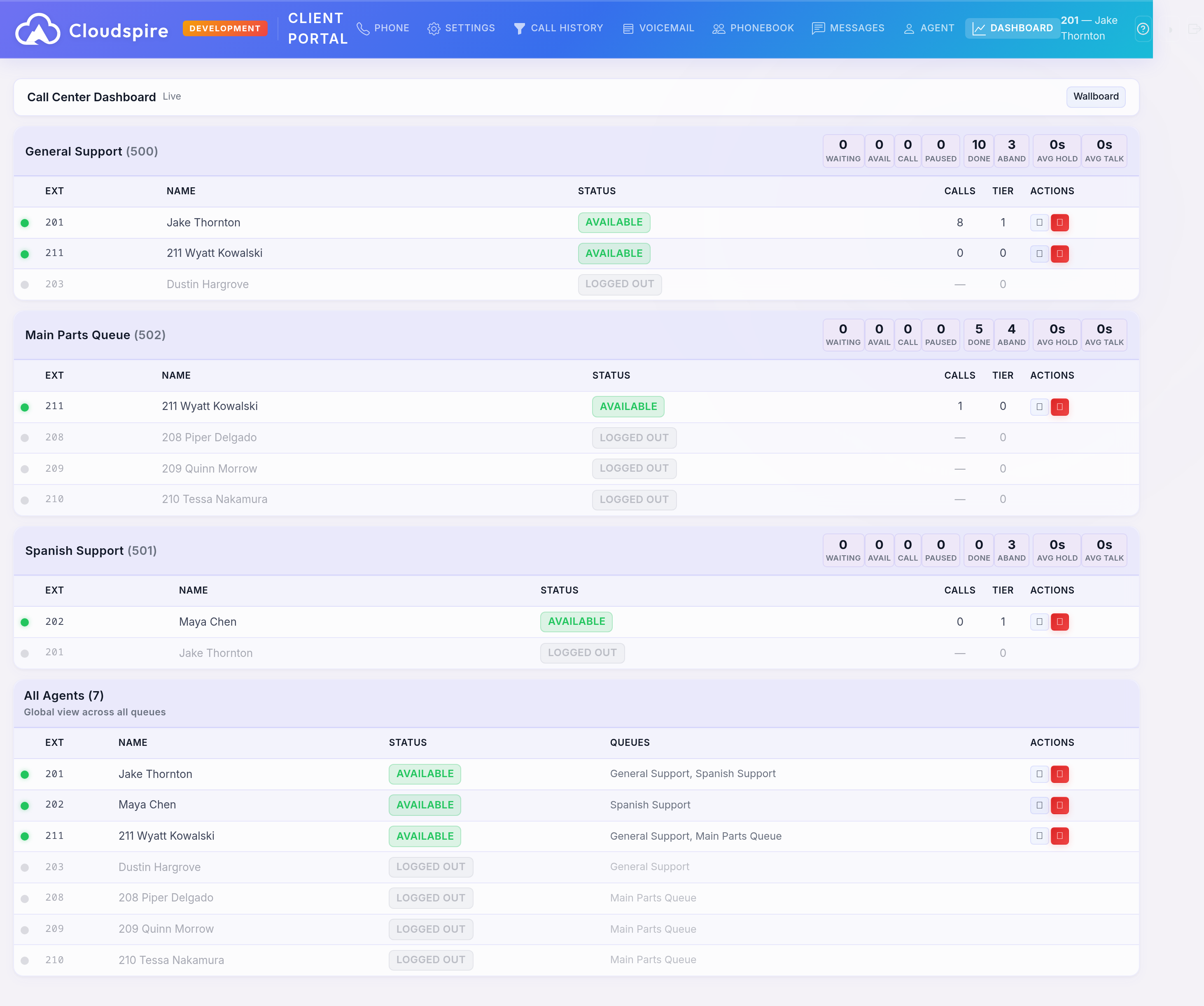
Supervisor dashboard showing per-queue agent sections and combined agent table
Per-Queue Sections
The dashboard displays a dedicated section for each call queue. Each section contains a stats header and an agent table, showing you exactly who is staffing each queue and what they are doing.
Queue Stats Header
Each queue section header shows eight live metrics:
| Metric | Description |
|---|---|
| Waiting | Number of callers currently waiting. Highlighted when callers are waiting. |
| Available | Number of agents logged in and ready to receive calls. |
| In Call | Number of agents currently on an active queue call. |
| Paused | Number of agents logged in but paused. |
| Completed | Total calls completed (answered by an agent). A running total since the phone system’s queue statistics were last reset (normally when the phone system restarts) not a daily count. |
| Abandoned | Total abandoned calls (caller hung up before being answered). A running total since the same statistics reset. |
| Avg Hold | Average time callers waited before being answered. A rolling average that weights recent calls most heavily; not tied to a calendar day or a selectable window. |
| Avg Talk | Average talk time for completed calls. A rolling average that weights recent calls most heavily; not tied to a calendar day or a selectable window. |
Timeframe: the first four metrics (Waiting, Available, In Call, Paused) are live counts of what is happening right now. The last four are the phone system’s own running statistics, and there is no selectable time window: Completed and Abandoned count up from the last queue-statistics reset (normally when the phone system restarts) and do not reset at midnight, while Avg Hold and Avg Talk are rolling averages weighted toward recent calls rather than averages over a fixed period. For statistics over a specific period (today, this week, a date range) administrators can run historical queue reports from the admin portal.
Agent Mini-Table
Below the stats, each queue shows a table of its assigned agents with:
- Status dot and badge: Color-coded real-time state
- Extension and Name
- Calls: Queue calls handled by the agent in this specific queue since they last logged in (the counter starts over at each login and when the phone system restarts)
- Tier: Priority level within the queue (lower numbers ring first)
- Actions: Pause, unpause, logout, whisper, and barge controls
Agents are sorted by status: active calls first, then available, paused, and logged out. Logged-out agents appear dimmed. Agents in multiple queues appear in each queue’s section.
Combined Agent Table
Below all queue sections, an “All Agents” table provides a global view showing every agent once with their overall status and queue memberships.
Agent Status Reference
Both the per-queue and combined tables use these color-coded status indicators:
| Status | Color | Meaning |
|---|---|---|
| Available | Green | Agent is logged in and ready to receive queue calls. |
| Queue Call | Blue (pulsing) | Agent is on an active call from a queue. Call duration is shown. |
| On Call | Cyan | Agent is on a personal or direct call (not from a queue). |
| Ringing | Yellow (pulsing) | A queue call is currently ringing the agent. |
| Paused | Yellow | Agent is paused. The pause reason is shown if one was provided. |
| Logged Out | Gray | Agent is not logged in to any queues. |
Supervisor Controls
As a supervisor, you can manage agents directly from the dashboard in both per-queue and combined tables:
Pause / Unpause
Click the pause button (⏸) next to an available agent to pause them. A dialog appears where you can optionally select a pause reason (e.g., Break, Lunch, Meeting). The reason dropdown is filtered per agent based on their queue assignments: global reasons are always shown, plus any queue-specific reasons for queues that agent belongs to. Click the play button (▶) to unpause a paused agent and return them to available status.
Pausing an agent prevents queue calls from being routed to them, but does not disconnect any active call.
Log Out
Click the power button (⏻) to log an agent out of all queues. A confirmation dialog appears before the action is taken. Logging out removes the agent from queue rotation entirely.
Whisper
When an agent is on a call, the W button appears (if you have whisper permission). Clicking it dials the whisper feature code (*54 + the agent’s extension) through your softphone. You will hear both parties, but only the agent hears you; the caller is unaware. This is ideal for real-time coaching.
Barge
When an agent is on a call, the B button appears (if you have barge permission). Clicking it dials the barge feature code (*55 + the agent’s extension) through your softphone. All three parties (you, the agent, and the caller) can hear and speak to each other. This is ideal for escalation handling.
Wallboard Mode
Click the Wallboard button in the top-right corner to expand the dashboard to full screen. In wallboard mode:
- The navigation bar is hidden
- All elements expand to fill the entire screen
- Font sizes increase for readability on large displays
- Auto-refresh continues every 5 seconds
Click Exit Wallboard to return to normal view. This is ideal for displaying on a call center wall monitor or TV screen.
Notes
- The dashboard shows all agents across all queues for your organization, not just agents in your own queues.
- Changes made from the dashboard (pause, unpause, logout) take effect immediately and are reflected within 5 seconds.
- Agent status is determined by the phone system in real time; it reflects actual phone usage, not just queue state.
- Queue statistics are not tied to a calendar day: completed and abandoned counts run from the last queue-statistics reset (normally a phone system restart), the two averages are rolling averages weighted toward recent calls, and per-agent call counts start over when the agent logs in.
Related
- Agent Panel: Your personal agent controls, queue stats, and daily performance metrics
- Softphone: Browser-based softphone used for whisper and barge actions