


Call History
Search and filter your calls, play recordings, and read AI transcripts and summaries.
The Call History tab shows a detailed log of all your inbound and outbound calls. You can search, filter, play recordings, and view AI-generated transcripts of your conversations.
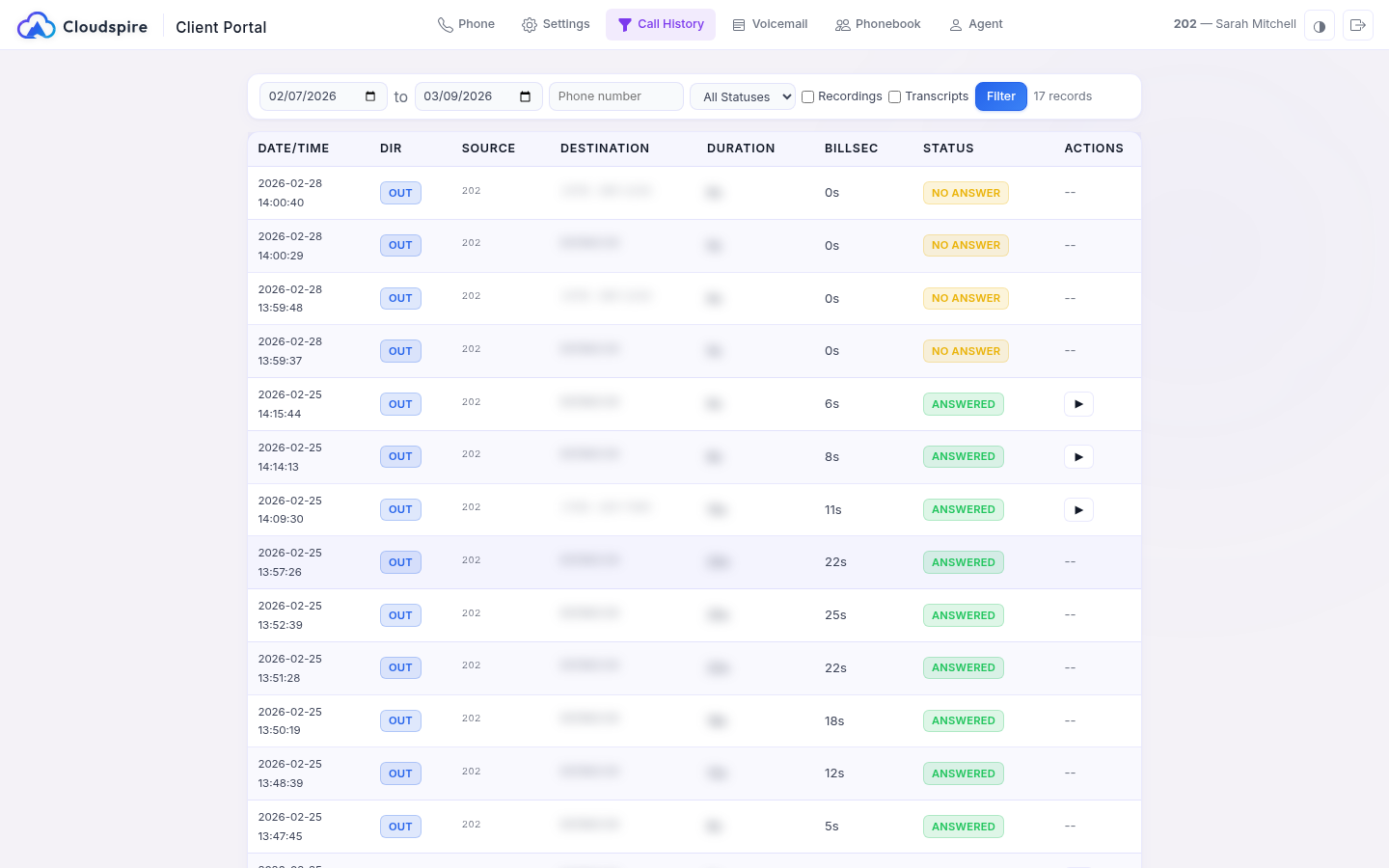
Viewing Your Calls
The call history table displays the following information for each call:
| Column | Description |
|---|---|
| Date/Time | When the call occurred |
| Dir | A badge marking the call as incoming or outgoing. The log shows both the calls you receive and the calls you place; outbound external calls and calls to other extensions all appear, each tagged with the correct direction from your point of view. Inbound phone calls are labeled Incoming with the number that was dialed, even when they arrive through Cloudspire’s edge network. |
| Source and Destination | The two ends of the call, as a phone number or extension. Whenever possible, the platform shows a human-readable name instead, pulled from an extension name, one of your phonebooks, or an automatic caller-name lookup. Numbers are formatted for easy reading. |
| Duration | How long the call lasted from start to finish |
| Billsec | The talk time, counted from the moment the call was answered |
| Status | The call outcome: Answered, No Answer, Busy, or Failed. Feature-code invocations (voicemail retrieval, call parking, pickup, fax receive) are labeled with the specific action rather than a generic status. |
| Actions | Play recording and/or view transcript buttons (when available). See below for when a recording becomes playable. |
Cells that wrap to multiple lines are truncated with an ellipsis and reveal the full value in a tooltip on hover, so the grid always stays one row per call.
Your call history shows your own view of each call. The full step-by-step route a call took through the phone system, including every hunt group, queue and menu it passed and which step answered it, is available to your administrator on the call detail screen in the administration portal.
Diagnostic test calls are hidden. The audio self-test codes (echo test *600, music-on-hold test *601, milliwatt tone *602, speak-time *603, and speak-number *604) do not appear in your call history, so running a quick check does not clutter the log. Calls the system places to your own extension (such as a greeting recording or a queue callback) that you never answered are hidden as well. Real feature actions (voicemail, parking, pickup, and the like) still appear with a descriptive label.
Filtering Calls
Use the filter bar above the call list to narrow your results:
- Date range: Set start and end dates to view calls from a specific period. Defaults to the last 30 days.
- Status: Filter by call outcome (Answered, No Answer, Busy, Failed, or All).
- Search: Enter a phone number or extension to search for calls involving that number.
- Has Recording: Check this box to show only calls that have a recording available.
- Has Transcript: Check this box to show only calls with an AI transcript.
Click Search to apply your filters. The results are paginated; use the page navigation at the bottom to browse through your call history.
Playing Recordings
If a call has a recording available, a play button appears in the Actions column. Click it to:
- Expand an inline audio player directly below the call record
- The recording streams and plays automatically
- Use the player controls to pause, scrub, or adjust volume
- Click the play button again to close the player
Recordings are available for calls where recording was enabled by your administrator. Only answered calls with talk time will have recordings.
Who Can Hear Your Recordings
You can play a recording, and read its transcript, only for a call you spoke on: one you made or answered, including a call transferred to you once you answer it. When a call rings you but someone else answers it, for example in a ring group or queue, the call appears in your history, but only the person who answered can play it. Coworkers cannot browse your calls here. Administrators who have the CDR screen in the admin portal can play every recording at your location.
Recordings Still Syncing
A call recording becomes playable 10 minutes after the call started, once it has finished syncing to cloud storage. Until then, the Actions column shows a dimmed clock icon in place of the play button; hover it to see a tooltip confirming the recording is still syncing. Reload the call list once the recording is ready and the play button appears in its place. If a call ends with no talk time (the caller hung up before answer), no recording is created and no clock icon is shown.
AI Transcripts
Calls with AI transcription enabled display a transcript icon in the Actions column. If the call has a transcript available:
- Click the transcript icon to open the transcript viewer
- The viewer shows an AI Summary at the top (a brief overview of the conversation)
- Below the summary is the full transcript of the call
- Click Close or press Escape to dismiss the viewer
AI summaries also appear as a small preview below the call number in the call list, giving you a quick overview without opening the full transcript.
Pagination
Call history is displayed 50 records per page. Use the page numbers at the bottom of the list to navigate. The current page is highlighted, and the total number of matching records is shown.